
This walkthrough follows one fictional short, HALF LIGHT, from an uploaded script to Day 1's call sheet landing in inboxes. Three shoot days, eleven scenes, four cast, a crew of fourteen, and two locations: a house and a diner. It's written for the 2nd AD or coordinator who will actually press send, so it spends time on the setup that makes the call sheet right and is plain about what you still type yourself.
The call sheet is the last step because it reads from everything else. If a cast member is missing from Day 1's sheet, the fix is usually two modules back.
Step 1: Get scenes from the script
In My Stories, create a story from the script (PDF, Word, Final Draft, Fountain, Highland, Celtx, or WriterDuet), review the suggested title, genre, and tags, and approve. Storiara splits scenes from the headings and measures page eighths from the PDF, then extracts characters, locations, props, wardrobe, and music and effects. The details of that pipeline, including its limits, are in how Storiara turns a script into a stripboard.
For HALF LIGHT, check the eleven scenes on the Scenes page: numbers match the shooting script, day and night are right, and the house and diner aren't split into four differently spelled locations.
Step 2: Put real people behind the characters
The call sheet's cast section lists actors, and it finds them through the characters they play. Open Cast & Crew. It has four tabs: Characters, Extras, Cast, and Crew.
- On the Cast tab, add each actor with an email address. You can import from a spreadsheet (CSV or XLSX), or use Import from Backstage with the actor's Backstage profile URL.
- On the Characters tab, open each character and use Assign Cast Member to link the actor. This link is what puts MAYA's scenes on Jess's call time.
- On the Crew tab, add crew with emails. Anyone without an email can't receive the call sheet by email, and the send dialog shows them as "(No email)."
- Optional: choose each person's union and contract, which fills in rates for the budget. Send an availability request if you want each person's availability; they fill in a form without logging in and can import busy times from Google Calendar.
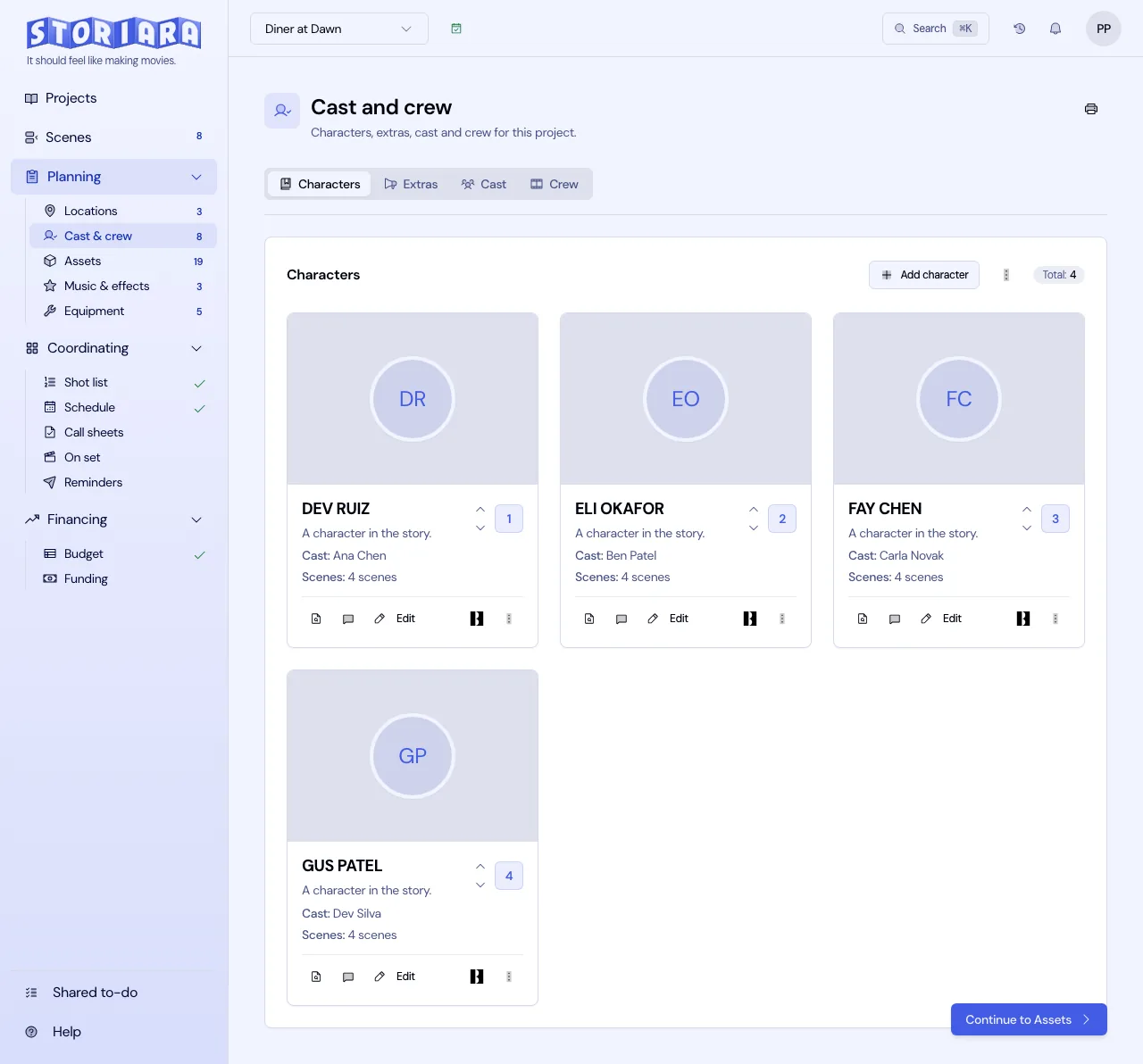
Extras go on the Extras tab. The call sheet has its own background section where you add extra groups with a quantity and description.
Step 3: Give each location an address
In Locations, open each set Storiara pulled from the script and add the real address. Address search (Mapbox) fills it in and puts it on a map. Add photos, and upload a parking map if you have one.
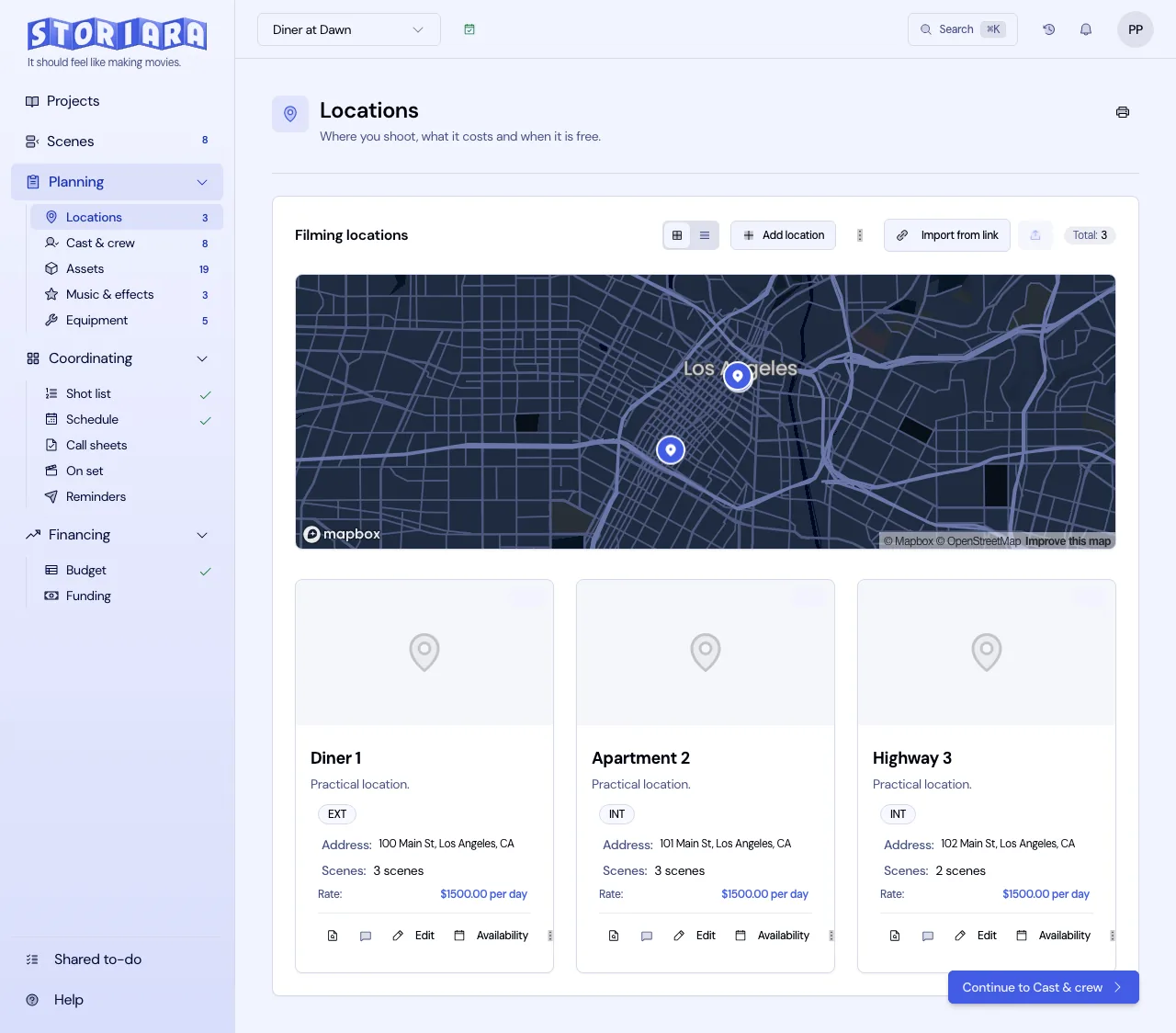
HALF LIGHT's house is a rental in Echo Park and the diner is on Alvarado Street. Two addresses, four settings in the script: the house covers INT. KITCHEN, INT. MAYA'S BEDROOM, and EXT. BACKYARD.
Step 4: Set dates and build the board
On the Scenes or Schedule page, click Set Production Schedule, pick the three shooting days on the calendar, and set daily hours (for HALF LIGHT, 7:00 a.m. to 7:00 p.m.). Callsheets stays locked until this exists.
Then open Schedule, choose Stripboard, and add scenes to each day with a duration per scene. HALF LIGHT's Day 1 at the house:
| Time | Sc. | I/E | Setting | D/N | Duration |
|---|---|---|---|---|---|
| 8:00 a.m. | 3 | INT | Kitchen | D | 90m |
| 9:30 a.m. | 4 | INT | Kitchen | D | 60m |
| 10:30 a.m. | 7 | INT | Maya's bedroom | N | 120m |
| 12:30 p.m. | Lunch | 60m | |||
| 1:30 p.m. | 1 | EXT | Backyard | D | 120m |
| 3:30 p.m. | 9 | EXT | Backyard | D | 90m |
The board blocks anything that would push past the 7 p.m. end of day, which is a useful check, but it doesn't know that scene 7 is a night interior that will need the windows blacked out. That's your call.
Switch to Day-Out-Of-Days and look at the cast grid. Jess (MAYA) should show SW on Day 1. If an actor shows I (idle) on a day they work, their character probably isn't linked to them yet, or the scene isn't on the board.
Step 5: Open the day in Callsheets
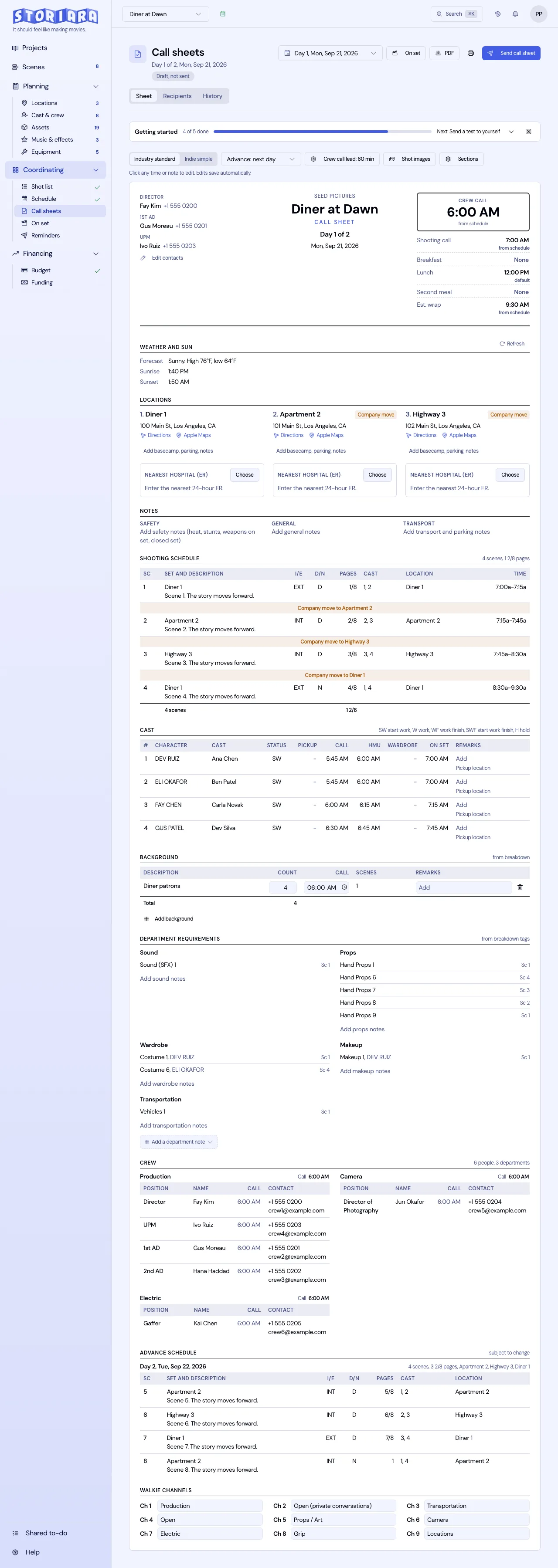
Callsheets has a day picker for each shoot day ("Day 1"). Select Day 1, and the call sheet draft shows:
- The project title, production company, and director and producer pulled from contacts.
- Scenes in schedule order with scene number, setting and description, D/N, pages, and the characters in each scene.
- The cast list with each actor's character and their Day-Out-Of-Days code for the day (SW, W, WF, and so on).
- A Set Call for each actor, which defaults to the earliest scheduled start among that actor's scenes that day. For Jess, that's 8:00 a.m. Her hair, makeup, and wardrobe time is a separate field you fill in.
- Locations with addresses.
- A weather forecast for the shoot date, from Google Weather, based on a reference address you can change with Edit weather location. The forecast appears once the date is close enough to have one.
What you type in:
| Field | Why it's manual |
|---|---|
| Crew Call and Shoot Call | The AD sets these from the first setup and prep time |
| Basecamp, Crew Park, Tech Trucks, BG Holding, BG Parking | Come from the permit and the location manager |
| Breakfast, Lunch | Catering times |
| Important Notes, Departmental Notes, Transport Notes | Safety, special equipment, and anything each department needs |
| Featured contacts | The contacts you want in the header |
You can set an accent color and upload a logo, and each day's edits are saved as overrides for that day. If you change the board after editing a day, use Reset day from updated data to rebuild the draft from the new schedule. The reset discards that day's manual overrides (times, codes, notes, page counts) and can't be undone, so copy your notes out first.
For what each block should say, the call sheet template and how to set call times cover the conventions.
Step 6: Send it
Click Send to open Send Callsheet. The dialog shows the day and how many items are scheduled that day. Under Recipients, tick cast and crew, or use Select All in each group. People with no email are greyed out.
To send now, click Send Callsheet. To send later, tick Schedule callsheet send and choose:
- Days Before Shoot: Same day, or 1 to 7 days before.
- Send Time.
- Timezone: Eastern, Central, Mountain, Pacific, Alaska, Hawaii, or UTC.
Then click Schedule Callsheet. Scheduled messages are processed every five minutes, so a 6:00 p.m. send can land a few minutes after six. For HALF LIGHT, Day 1's sheet is scheduled for 1 day before at 6:00 p.m. Pacific, after the last location check.
Two more ways out:
- Copy public link. Each shoot day has one public link, the same for everyone, and it opens without logging in. Anyone who has the link can view the sheet, so treat it like the PDF you'd email and don't post it anywhere public.
- Print callsheet. This uses your browser's print dialog, where Save as PDF gives you a file.
The Reminders page is for everything else: a message to selected cast and crew, sent now or scheduled, with Scheduled and Sent tabs.
What this workflow doesn't do
- No text message delivery until you set up your own Twilio account, and no push notifications.
- The time zone list is US zones plus UTC.
- No separate PDF download button; use print to PDF.
Troubleshooting the usual problems
| Problem on the call sheet | Where to fix it |
|---|---|
| Callsheets page won't open | Set Production Schedule hasn't been done |
| An actor is missing from the cast list | Their character isn't assigned to them in Cast & Crew, or their scenes aren't on the board that day |
| Wrong DOOD code next to an actor | Check the Day-Out-Of-Days grid; codes like T, R, and PW are manual overrides |
| A crew member can't be selected | No email on their Crew record |
| Scenes are out of order or missing | Rearrange the Stripboard, then Reset day from updated data |
| No weather shown | Check the reference address, or the date is too far out for a forecast |
Once Day 1 goes out, the loop repeats every night: update the board if the day went long, reset and edit tomorrow's sheet, and schedule the send. The advance call sheets post covers sending a look-ahead for the day after.