
I'm writing this for the person who's going to check our work: a 1st AD or producer who has built boards by hand and wants to know exactly what Storiara does and where it stops. Every step below matches the app as it is today, including the parts we haven't built.
The pipeline runs: script file, scene list, breakdown, production dates, stripboard, Day-Out-Of-Days. The scene list and breakdown are mostly automatic, with you checking them. The production dates and the board are yours, and the Day-Out-Of-Days fills in from the board.
1. Upload the script
From My Stories, start a new story and choose Scripted Content. Upload the script and click Analyze. Storiara accepts PDF, Word, Final Draft, Fountain, Highland, Celtx, and WriterDuet. It can't read scanned PDFs without a text layer, Celtx online projects, or Movie Magic Screenwriter files, so export one of the accepted formats from your writing app. The script limit is 1,000,000 characters, which a feature won't come near.
Storiara reads the script to suggest a title, genre, and tags. Check them and click Approve & Continue. If you uploaded a Word or FDX file, Storiara also generates a screenplay-formatted PDF (Courier 12 point) for viewing, since the page math in step 3 depends on a PDF.
2. Scenes come from the headings
Scene splitting doesn't use AI. Storiara reads the scene headings directly: INT, EXT, EST, and I/E headings, including numbered headings, so "42 EXT. PARKING GARAGE - NIGHT 42" parses as well as an unnumbered draft. From each heading it takes interior or exterior, the location name, and day or night. That's deterministic, so a clean script gives you the same scene list every time.
Speaking characters and locations are read from the file the same way, and Final Draft tags come in as breakdown elements. AI comes in after that. Storiara writes a short description and time of day for each scene, then extracts extras, props and wardrobe, and music and effects in parallel. Each extracted item is checked against a quote from the script before it's kept, so what lands in the breakdown should trace back to a line on the page. Results appear in the app as they finish. If extraction fails partway, it retries automatically, and the Scenes page has a Retry Extraction button.
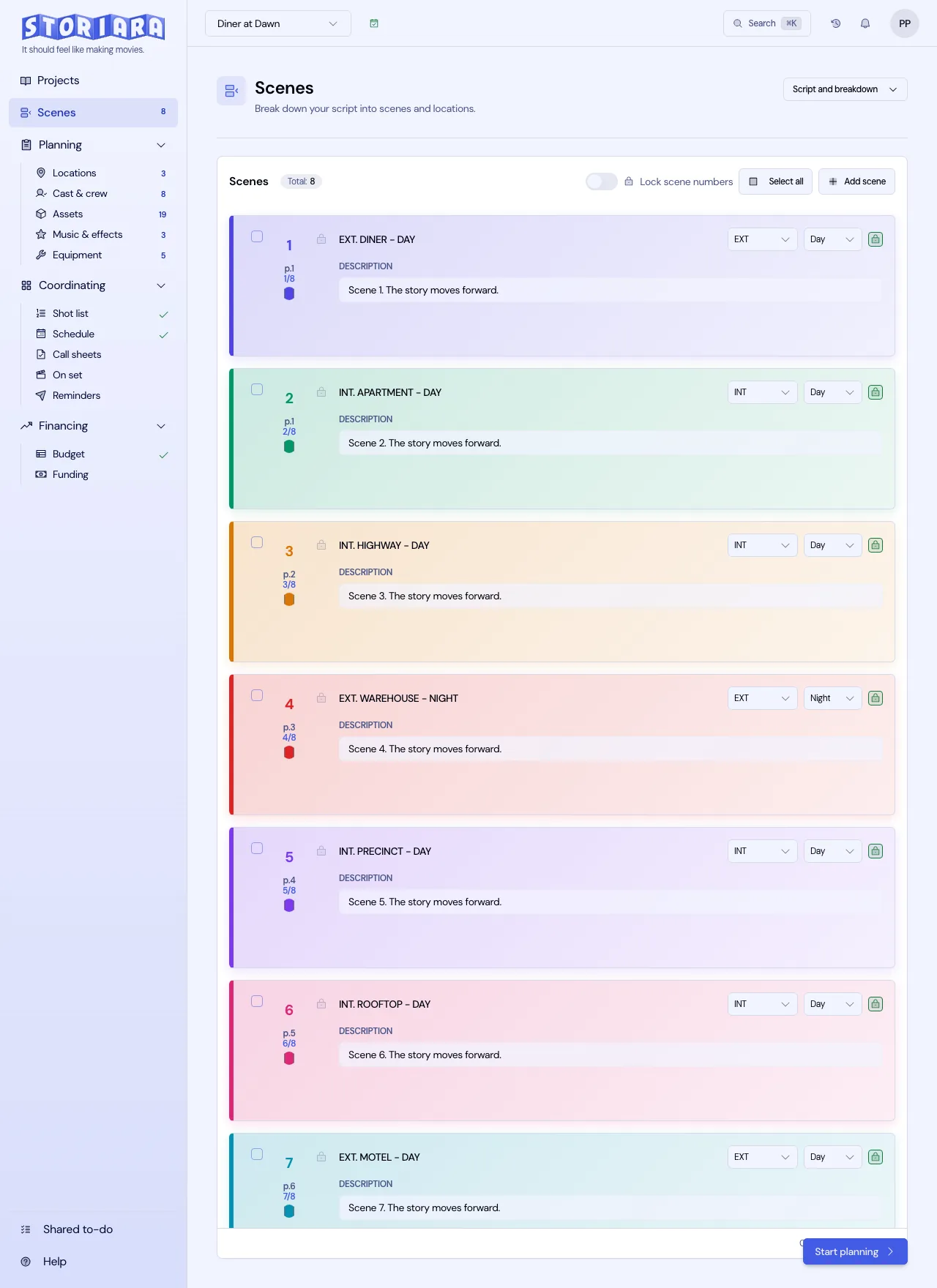
What to check here, in order of how often it matters:
- Scene numbers against your shooting script. Storiara reads the numbers from the file, and you can lock them so a later draft doesn't renumber them; see how to number a film script.
- Day and night. A heading that says "CONTINUOUS" or "LATER" carries no time of day, so check what the AI assigned and correct it on the Scenes page.
- Locations with slightly different names ("DINER" and "ROSIE'S DINER") that are the same set.
You can reorder scenes by dragging, add or delete them, and pick a scene color. Scenes with shots or assets attached are locked against deletion.
3. Page counts in eighths
Storiara measures scene length from the script PDF's layout. Each page is split into eight horizontal bands. A heading's starting eighth is its vertical position on the page divided by page height, times eight, rounded down. The scene runs to the next heading, and nothing counts as less than 1/8.
A worked example: Scene 14's heading sits 30 percent of the way down page 12, so it starts in eighth floor(0.30 x 8) = 2. Scene 15's heading sits 70 percent down page 13, eighth floor(0.70 x 8) = 5. From page 12 eighth 2 to page 13 eighth 5 is 6 eighths left on page 12 plus 5 on page 13, or 11/8, shown as 1 3/8.
Counts show as whole pages and eighths ("1 3/8") and are editable. Measuring from the layout uses the same eighths-of-a-page idea ADs use, but it's still an estimate. Spot-check a few long scenes against your own count before you trust the totals. The page eighths entry covers the convention.
4. Fix the breakdown in the Script & Breakdown View
When a story has a script PDF, the Script & Breakdown View opens as a panel beside any page. It shows the script with extracted elements highlighted. Select text, and the menu offers Add as Scene, Character, Location, Prop, Wardrobe, Vehicle/Animal, Makeup/Hair, Visual FX, Sound FX, Music, Stunt, or Extra (atmosphere or silent). AI cleans up the item's name and fills in its category and description. You can also link highlighted text to an existing asset, remove a marking, or hide a term so it stops being highlighted.
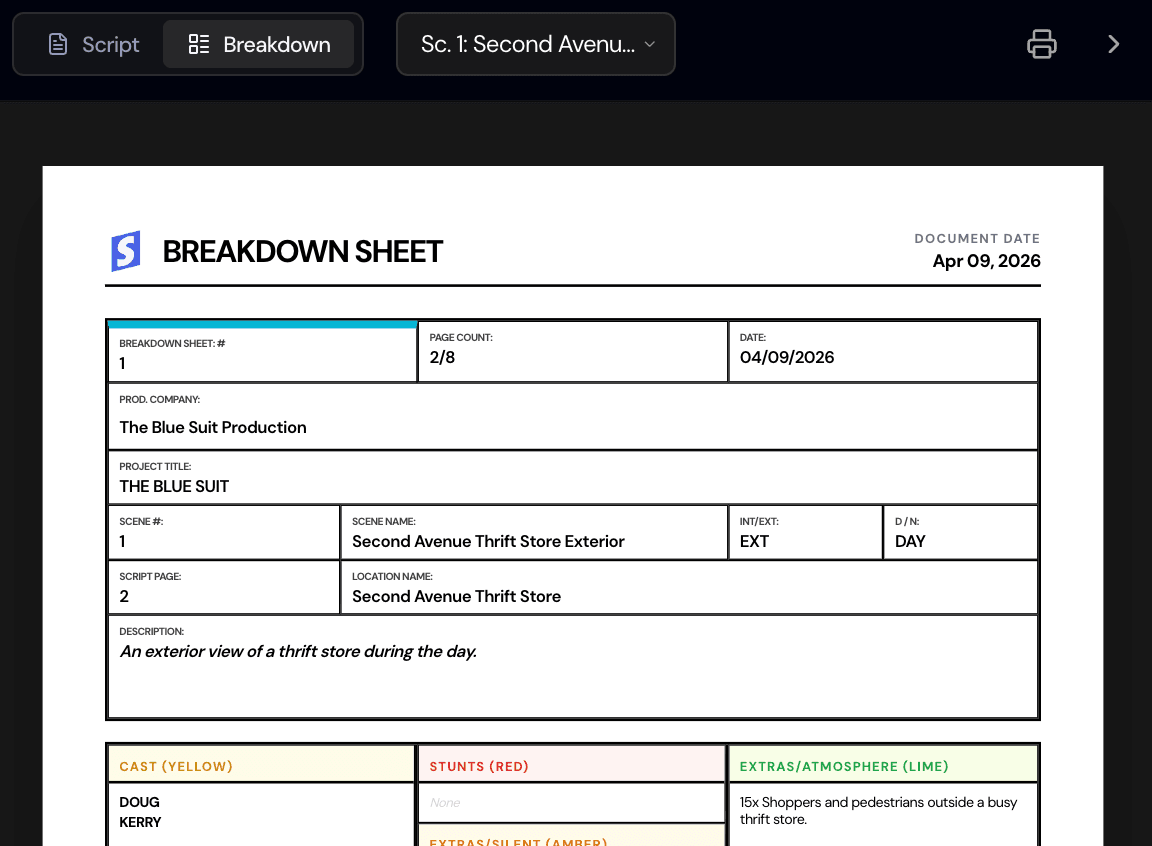
The Breakdown tab shows a breakdown sheet per scene, and you can print one sheet, all sheets, or the script. If you'd rather tag the traditional way, how to fill out a breakdown sheet has the color conventions.
5. Set the production dates
The stripboard needs to know which days you're shooting. On the Scenes page or on Schedule (under Schedule Settings), click Set Production Schedule. Click calendar dates to select or deselect shooting days, so a five-day week with weekends off is just the dates you pick, and set Daily Production Hours with a start and end time.
Two things to know. The end time has to be after the start time, so a production day can't cross midnight. A night exterior from 6 p.m. to 4 a.m. has to be entered as a day ending at 11:59 p.m., or split. And changing the schedule later removes any scheduled scenes or shots that fall outside the new dates, which the dialog warns you about. Take a printout of the board before you shorten a schedule.
6. Build the board
Open Schedule and pick Stripboard in the view switcher. Each shoot day is a block with its date and a header counting Scenes, Shots, and Total Time. The strips show SCENE, I/E, SCENE SETTING, D/N, SHOOT LOCATION, and TIME.
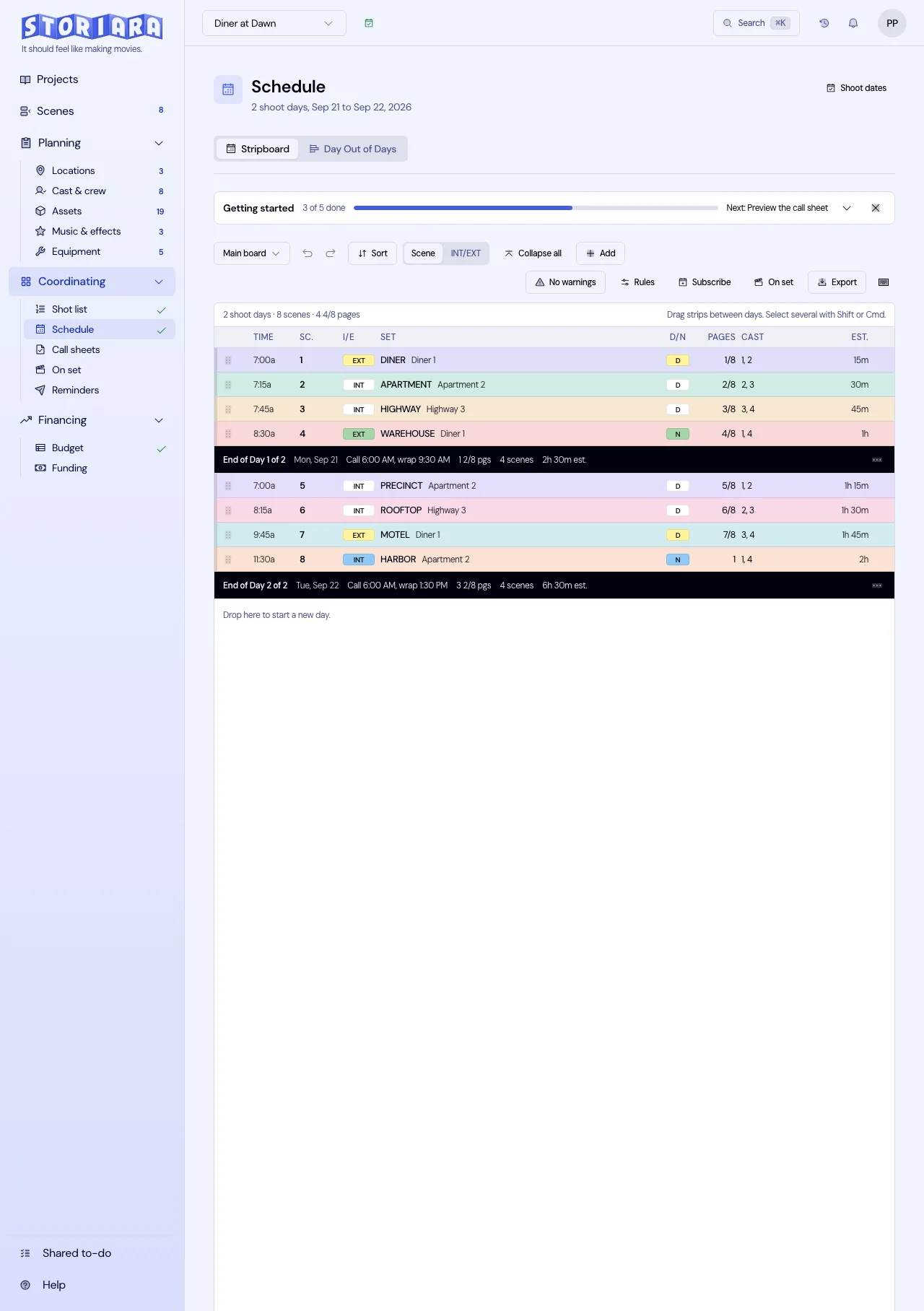
To fill a day:
- In the day header, click the button to add a scene. The Schedule Scenes dialog opens.
- Pick scenes one at a time, or use Select scenes from location to add every unscheduled scene at one location.
- Set a duration per scene, then add them.
- Add breaks for lunch or an end-of-day marker, and add shots if you're scheduling at shot level.
- Drag strips to reorder them within a day or move them to another day. Swap Scene replaces the scene in a slot, and Move to another day sends a strip to a target shooting day.
The board enforces two rules. You can't schedule more time in a day than the daily hours allow; durations that would go over are marked "(Overtime)" and blocked. And items can't overlap in time within a day.
On wide screens, the Production Availability panel beside the board shows cast, crew, location, and prop availability for the visible day in 15-minute slots. The board won't stop you from scheduling an actor on a day they marked unavailable, but the warnings panel flags it, along with unavailable locations.
Scene strip colors come from each scene's color on the Scenes page, not from the INT/EXT and day/night convention. If you want the classic white, yellow, blue, and green board, set scene colors by hand; the stripboard colors post has the standard.
7. Check the Day-Out-Of-Days
Switch the view to Day-Out-Of-Days. Storiara fills the grid from the board for cast members who are linked to characters.
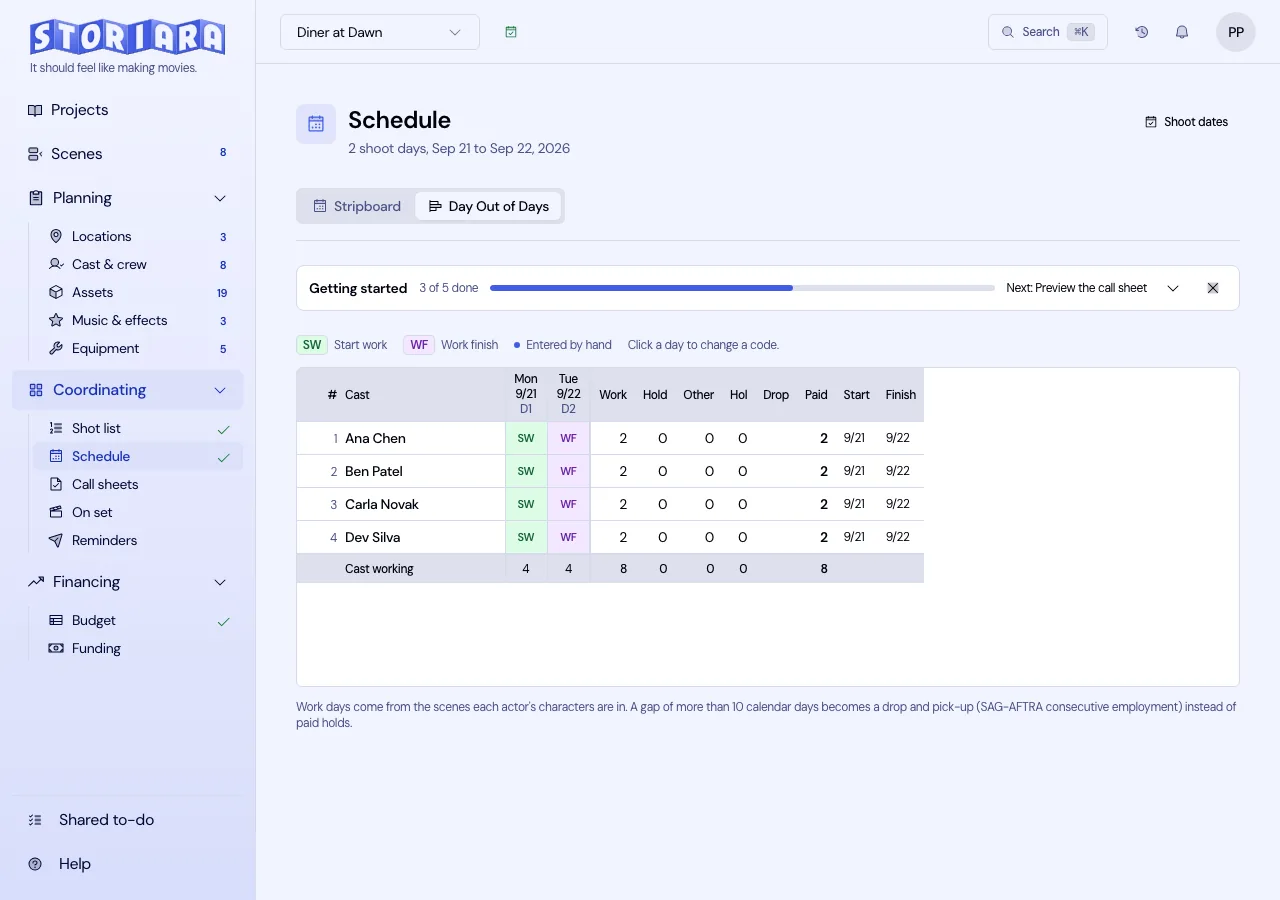
It assigns SW, W, WF, SWF, H, and I automatically. Travel, rehearsal, drop, and pickup codes (T, R, WD, PW, PWF, SR) are manual: click a cell, choose Override DOOD Code, and pick one. Reset to Auto puts a cell back. Rows are cast only, with no crew, locations, or equipment. For reading the grid, see the Day out of Days glossary entry.
What Storiara doesn't do on the board
I'd rather you read this here than find it on day three of prep:
- No automatic scheduling or optimization. You can sort and group strips, but nothing builds the board for you.
- No sub-boards for multiple units.
- Turnaround, long days, late meals, night-to-day flips, minors, and availability conflicts show as warnings, not hard blocks. The turnaround calculator is still a useful cross-check.
What you get is a script-driven scene list with measured eighths, a breakdown you can correct in context, and a board that feeds the Day-Out-Of-Days and each day's call sheet. If you already edited a call sheet before moving strips, use Reset day from updated data on Callsheets to pull the new schedule in. The script to call sheet walkthrough picks up from here.