Breakdowns
Breakdowns in Storiara happen in the Script & Breakdown View, a panel that opens from the right edge of any page while a story with an uploaded script is selected. It shows the script with every pulled element highlighted, lets you tag what the automatic pull missed, and prints a breakdown sheet per scene. There isn't a separate Breakdowns page in the sidebar; the panel travels with you, so you can tag a prop while you're looking at the Assets list.
Open the panel
- Select a story on My Stories.
- Click the vertical Script & Breakdown View tab on the right edge of the window.
- Use the Script tab to read the pages and the Breakdown tab to see one scene's sheet. The Breakdown tab stays greyed out until the story has scenes.
The toolbar has zoom in and out (click the percentage to reset), a search box (Search script...), a full-screen toggle, and Close Panel. The tab only appears for stories that have a script file; Word and Final Draft uploads get a generated PDF so they display the same way.
Read the highlights
Pulled elements are highlighted in the script by category. The legend along the bottom doubles as a set of toggles: click a category to hide or show its highlights.
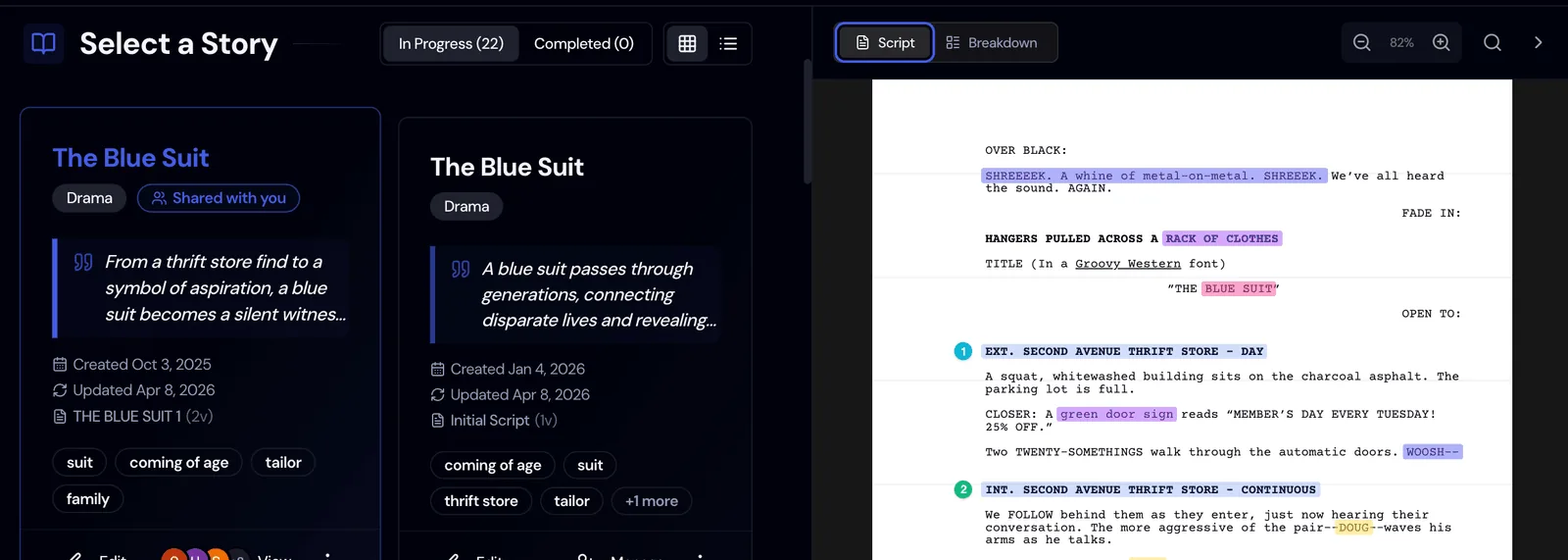
| Category | Highlight color |
|---|---|
| Scene Headings | Blue |
| Characters | Yellow |
| Locations | Green |
| Props | Purple |
| Wardrobe | Pink |
| Vehicles & Animals | Orange |
| Makeup & Hair | Teal |
| Visual FX | Sky blue |
| Sound FX | Indigo |
| Music | Violet |
| Stunts | Red |
| Extra Silent | Amber |
| Extra Atmosphere | Lime |
These colors are Storiara's own. They don't follow the traditional pencil breakdown key some departments still use (cast in red, extras in green, props in violet, and so on), so if you hand printed sheets to a crew used to that key, tell them which legend they're looking at.
Tag something the pull missed
- In the Script tab, highlight the words with your mouse, for example "a loaded revolver".
- A Breakdown Selection menu appears. Choose the category: Add as Character, Add as Location, Add as Prop, Add as Wardrobe, Add as Vehicle/Animal, Add as Makeup/Hair, Add as Visual FX, Add as Sound FX, Add as Music, Add as Stunt, Add as Extra (Silent), or Add as Extra (Atmosphere). Add as Scene only shows when the selection includes INT. or EXT.
- Storiara opens the matching module with the add form already started. AI reads the text around your selection and fills in a cleaned-up name, a description, and a category (for a prop, something like Weapons). It also tries to match the scene heading above your selection and link that scene.
- Check the form, adjust it, and save.
You choose the category; the AI doesn't reclassify your pick. Its job is to tidy the name and fill the fields so you aren't typing "Revolver, loaded, hero" by hand.
Link text to an item you already have
Scripts refer to the same thing in different ways. The hero's "old Buick" on page 3 is "the car" on page 40. To connect them:
- Highlight the new wording.
- Choose Link to Existing... at the top of the selection menu.
- In Link Text to Existing Asset, pick the Asset Type (Characters, Locations, Props, Wardrobe, Vehicles/Animals, Makeup/Hair, VFX/SFX/Music, or Extras) and use Select Asset to choose the item.
The item now highlights wherever that wording appears.
Clean up highlights
Click any highlight to open its menu:
- Hide highlight only stops that word from being highlighted but keeps the item in your breakdown. Use it when a common word like "watch" gets flagged every time someone checks the time.
- Remove reference from (item name) removes an alternate wording from an item without deleting the item.
- Remove asset from breakdown deletes the item after a confirmation. This can't be undone.
Hidden words collect under the hidden-highlights button in the toolbar, where you can restore one or all of them.
Print breakdown sheets and the script
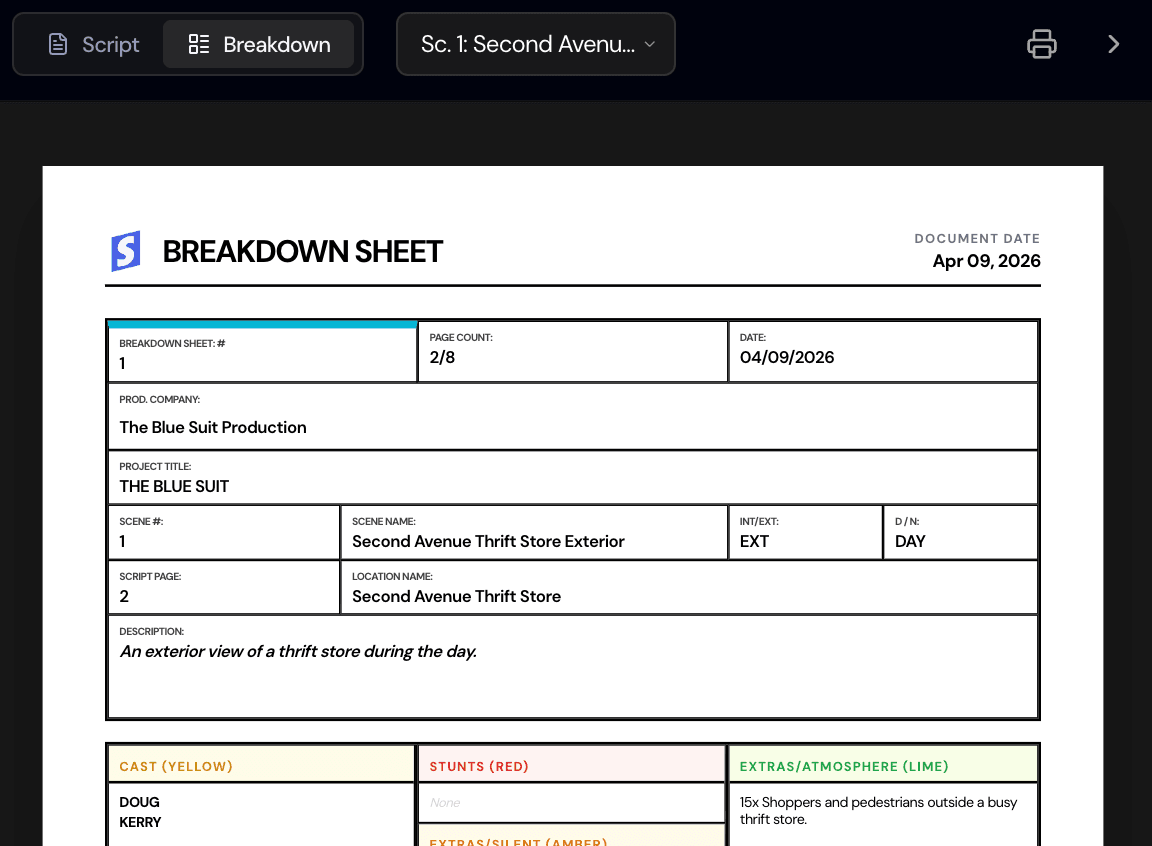
In the Breakdown tab, pick a scene from Select Scene, then open the print menu:
- Just this scene prints that scene's breakdown sheet.
- All scenes (combined) prints every sheet in one run.
In the Script tab, the print menu offers Marked Up Version (with highlights) and Original Version. All printing uses the browser's print dialog, so choose "Save as PDF" if you need a file to send.
How departments tend to use it
A 1st AD usually does the first full pass alone, scene by scene in the Breakdown tab, before anyone else touches the story. After that, invite department heads with the Department Head role and ask each to tag only their own category. The prop master catches the second coffee cup the pull didn't list; the costume designer adds the change after the rain scene. Because highlights update for everyone as items are added, you can see the breakdown fill in during the prep meeting.
Watch for implied elements. The pull reads what's written. If scene 18 says "They've been fighting for hours," nobody wrote "blood rig" or "torn shirt, 3 stages", and that's what your department heads are for.
Limits
- The panel needs an uploaded script. Unscripted stories don't show it.
- There's no separate element for set dressing, greenery, special equipment, or livestock handlers. Put set dressing under Props (category Set Decoration) and note wranglers or handlers on the animal's entry.
- No quantity or multiples tracking. If a breakaway bottle needs six copies, write that in the item's notes.
- Printed output is browser print; there's no PDF export button and no export to other breakdown software.