Shot list
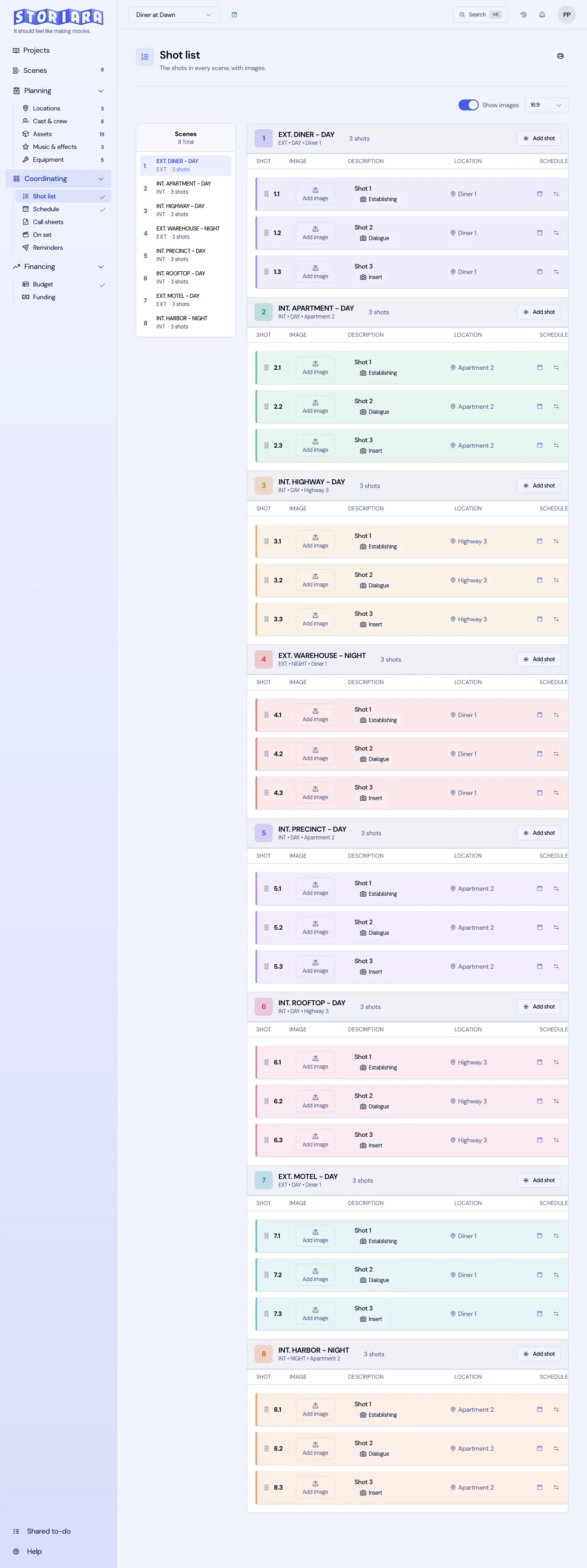
The Shot list page is where the director and DP turn scenes into setups. Shots live under the scene they belong to, carry a type such as Medium Close-Up or Insert Shot, and can hold an image. Once a shot exists, the stripboard can carry it as its own row under the scene, which is how you plan a tight day shot by shot instead of scene by scene, and the call sheet can print its image on the back page. Every shot is written by you. Storiara doesn't generate shot lists.
Add shots to a scene
- Open Shot list in the Coordinating group. It unlocks as soon as the story has scenes.
- Find the scene, either in the scene list down the left or by scrolling. Each scene block shows its number, heading, and a shot count.
- Click Add shot on that scene.
- In Add New Shot, confirm the Scene, then enter a Shot Name such as "42-A Wide, Maya enters garage".
- Pick a Category. The list covers Establishing Shot, Master Shot, Wide Shot (WS), Full Shot (FS), Medium Wide Shot (MWS), Cowboy Shot, Medium Shot (MS), Medium Close-Up (MCU), Close-Up (CU), Extreme Close-Up (ECU), Insert Shot, Reaction Shot, Point of View (POV), Over the Shoulder (OTS), Two Shot, Group Shot, Dialogue, Action, B-Roll, Transition, Special Effect (SFX), and Other.
- Add a description and save.
Each shot also carries a Shoot (min) length, which is what the stripboard uses when the shot sits on a day of its own. There are no separate fields for lens, camera movement, angle, or frame rate. Put them in the description in a consistent order so the list reads like a camera report: "32mm, dolly in, low angle, 48 fps."
Edit, reorder, and move shots
- Click the pencil icon next to a shot's name to open Edit Shot Details and change the Shot Name, Category, Description, or Shot Image.
- Drag shots within a scene to put them in shooting order. Most DPs order by setup (all the coverage from one camera position before turning around), not by the order the shots appear in the cut.
- Click the arrows icon (tooltip "Move to another scene") to move a shot into a different scene. That's useful when scenes were split or combined after the script pull.
- Change a shot's SHOOT LOCATION with Edit Location when coverage for one scene is shot somewhere else, like inserts on a stage.
- Click the trash icon to Delete Shot.
Add shot images
Click Add image in the shot row, or upload one from the shot's edit dialog. Use a frame you drew, a still from a scout with the angle marked, or a reference frame from another film. Click an image to view it full size, and replace or remove it from the same place.
Turn Show images on or off at the top of the page, and pick the frame shape for thumbnails: 16:9, 2.39:1, 1.85:1, 4:3, or 1:1. Match it to your capture aspect ratio so framing notes on the images make sense.
These images are what the call sheet prints on its optional back page. Pick Shot images on the call sheet toolbar and it lists the day's scheduled shots that carry one, grouped by scene in schedule order. It is the only place shot images travel to the crew, so a shot the DP needs everyone to see is worth an image even if the rest of the list has none.
Get shots onto the schedule
The Schedule column says whether a shot is already on a day, and the calendar icon takes you to the board. On the Schedule page, a scene strip expands to show its shots inline under it, each with its own length and start time, and unplaced shots wait in the boneyard. Drag a shot to a day and it joins that scene's strip there, or gets its own row if the scene isn't on that day.
Moving a scene doesn't move its shots. The strip says how many are still on the old day and offers Move shots with scene when that's what you meant, which is the right behaviour when inserts are being picked up somewhere else.
Print the shot list
Click the printer icon. The print view follows Show images, so turn images off for a compact list the 1st AC and script supervisor can carry, and on for the director's book. Use the browser's "Save as PDF" if you need a file to email.
Tips from set
Storiara numbers shots by scene and position (2.1, 2.2, 2.3). Many camera and script departments slate setups by scene plus letter instead (42A, 42B, 42C). If yours does, put that code at the start of the Shot Name so the list matches the slate and the script supervisor's notes.
Set the shoot length from your DP and gaffer rather than guessing. Lighting changes and company moves drive setup time far more than shot size does, so a turnaround on a night exterior needs more room on the board than three inserts at the same table. Storiara does not estimate setup counts or setup time for you; those numbers are yours to supply.
Limits
- No AI shot list generation. All shots and images are added by you.
- No lens, movement, angle, or equipment fields. Use the description.
- No camera position or setup estimate. The script supervisor's slate setups on On set are a different thing with the same word, and they record what was actually shot.
- No bulk import of shots from a spreadsheet.
- Shots aren't linked to cast or props on this page.
- Output is print only.
Related
- How to build a shot list
- How to build a stripboard
- How to print the schedule
- Scenes, Schedule, Callsheets, On set
- Glossary: shot list, coverage, setup, master shot
- Template: shot list
- Guide: on-set operations