Callsheets
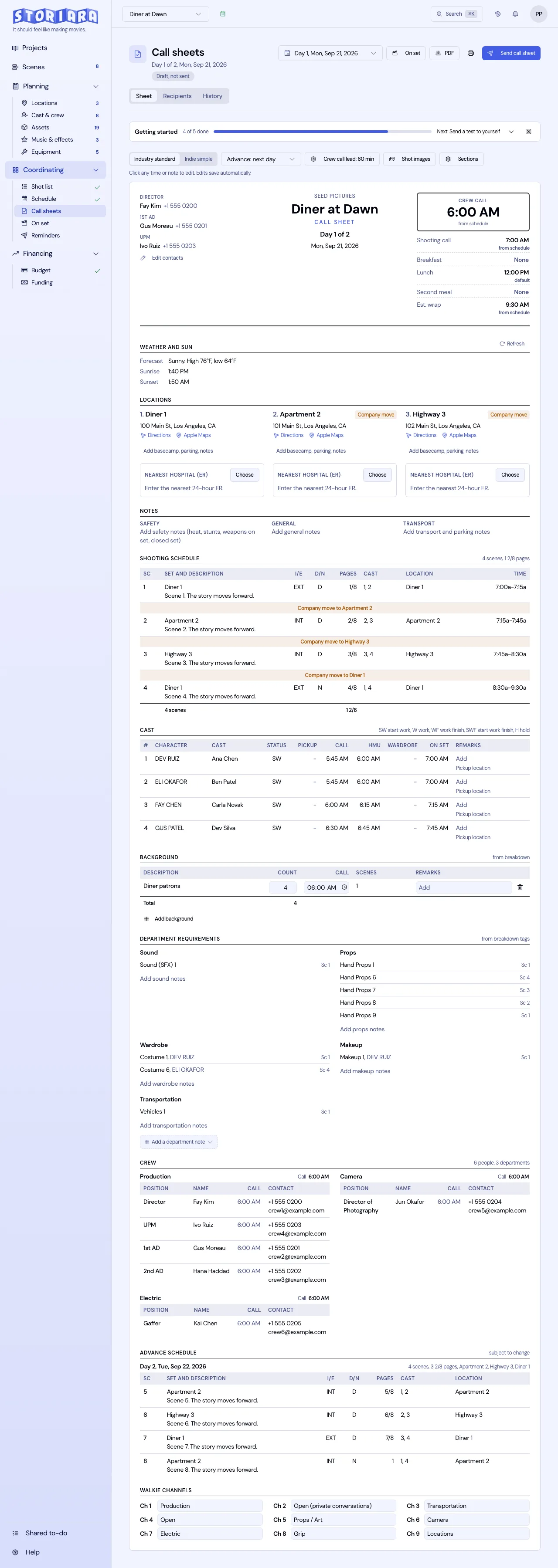
The Callsheets page builds a call sheet for every shoot day from data you've already entered. Scheduled scenes, the cast in them, their DOOD codes, and location details come across from the board. What's left is the part a 2nd AD always does by hand: call times, meal times, parking, notes, and the safety line. When it's ready, you send it to each person individually, watch who has confirmed, and publish an update when the board moves.
Before you start
Callsheets opens in the sidebar once production dates are set on the Schedule page. The sheet is only as good as the board behind it, so build the stripboard, assign actors to characters in Cast & Crew, and add emails or phone numbers for everyone who should receive it.
Pick a day and a layout
The day picker lists the shoot days from the schedule, numbered the way the stripboard numbers them. Layout is either Industry standard, a front page with the title block, call times, weather and sun, locations with the hospital, notes and the schedule, and a back page with cast, background, requirements, crew by department, the advance schedule and the walkie chart; or Indie simple, one page with fewer columns. Sections you don't use can be hidden, and the advance schedule shows none, the next day, or the next two days.
Edit the sheet in place
Every time, note, cast and crew call, location detail, background row, department note and walkie channel is editable where it sits. Each value says where it came from:
- from schedule or from template, meaning it follows the board or your template and will keep following it.
- saved on this day, meaning it belongs to this date.
- edited, meaning you typed over it. An edited value can be undone one at a time, or all at once with Clear day edits, which drops back to what the board says.
Warnings show above the sheet and never print: a location with no address, a late lunch, a short turnaround, a character with no actor assigned.
Header contacts
The people at the top of the sheet start from the crew list, picking up the director, producers, 1st AD and UPM, plus any header contacts on your template. Edit contacts underneath opens a dialog where you can rename a row, change a phone or email, reorder by dragging or with the arrows, hide a crew row, or add a row typed by hand or picked from cast and crew, which fills in their phone and email.
Each row says from crew list, from template, edited or typed here, and an edited row can be reset. A value you don't change keeps following the crew list, so a new UPM's number updates every future sheet.
You can hold up to 12 rows and the sheet prints the first 8. Mark a phone or email private and it prints only for production and for that person. The same rows appear on Print, the PDF, the personal link and the public link, and the email's "Questions" line uses the first two people with a number the recipient is allowed to see, which is normally the 1st AD then the production office. The director's number is never used for that.
Logistics that fill themselves in
When a location has an address, the editor looks up the time zone, the sun times (sunrise, sunset, and both golden hours) and the nearest hospitals. You pick which emergency room is the right one, and until you do, the hospital box asks you to. Look it up for every location, not once for the show: the nearest ER to a stage in Burbank is not the nearest one to a ranch in Santa Clarita, and both the safety bulletin and the set medic work from that line.
The forecast is pulled once a day and refreshed only when you click Refresh, so a new forecast never quietly changes a sheet you already sent. Directions and Apple Maps links work with no setup.
Shot images on the back page
Shot images in the toolbar picks shots from that day that carry an image on the Shotlist, and prints them after the back page sections, grouped by scene in schedule order. It's off by default, and only shots with an image are ever listed. Picking images is not treated as a change to the sheet, so it doesn't trigger an update to the crew. Images appear on the web view and on Print, not in the downloaded PDF.
Send it
- Click Send.
- Pick people. Working cast are preselected on the first send, and after that the people who got the last one. Add any email address or phone number that isn't on the list.
- Choose the channel per person. Email is how call sheets go out, and it works for every production with no setup. Text and WhatsApp are available only where a production has texting enabled. Where it isn't, the dialog says they are off.
- Send now, or schedule it, for example "The day before, 6:00 PM" in the production's time zone.
- Optionally remind anyone who hasn't confirmed a set number of hours before their own call. This is off by default.
Everyone gets their own link, not a shared one. The email is sent by Storiara itself, from a Storiara address, so there is no mail account to connect and nothing to configure before the first send. A message that fails is retried on its own a few times before the recipients table marks it failed. The email leads with their own line ("Your call 6:30 AM, HMU 6:45 AM, on set 8:00 AM, scenes 12, 14"), a Confirm button, Open call sheet, Can't make it, and the day's essentials.
Their page shows their call in large type, pickup, HMU, wardrobe and on set, their scenes, directions, Apple Maps, Add to calendar, a call button for the 1st AD when that number is public, the PDF, and then the full sheet with their row highlighted. It keeps working with no signal, saying which copy it is showing.
Where texting is enabled, the text is one short message with the link, and a reply of C confirms and N declines.
Updates, not resends
Once a sheet has gone out, any edit makes the header say edits not sent. Send update shows the change lines against the last published version ("Crew call 7:00 AM to 6:30 AM", "UPM: Priya Shah to Dana Wu") and preselects only the people those changes affect. Anyone else can be added.
Each publish writes a numbered version. History lists every one with who sent it, when, and what changed, and lets you view a version as it was sent or download its PDF. A plain resend or a reminder does not publish, so an unfinished edit never reaches the crew by accident.
Crew who already opened an earlier version see a banner on their page with only the lines that affect them.
Watch who has it
The Recipients table updates live: the channels each person was sent on and where each stands (sent, delivered, opened, bounced, failed, replied STOP), the time and version they were sent, when and how often they viewed it, and whether they confirmed or said they can't make it, with their note. From there you can resend to everyone unconfirmed, resend to one person, copy a person's link, set the reminder, or cancel a scheduled send.
Watermark every copy
Watermark on the sheet is off by default. Turn on Watermark every copy and it applies to the whole production. Each person's link and PDF then carries their own name across the page, and you can Add their email, Add the date it was sent, type up to 60 characters of Extra text such as "CONFIDENTIAL", and set the Strength. The copy you see in the editor, on Print, and in History is marked as a production copy with your name, and the shared public link is marked as a guest copy. A leaked sheet therefore says whose it was.
Studio and network sheets
Sheet setup holds what a studio call sheet carries on every day: production company, studio name and address, show and studio logos, season, paper size (Letter or Legal), policy lines under the header, a footer band, safety contacts, a QR code with a label and link, a signature, standard vehicles and equipment, and up to three extra cast columns. All of it is optional, and a sheet without these fields looks as it did before.
Per day you can add the block and episodes, callout boxes, safety bulletins, stand-ins, background calls, meal counts, and the day's vehicles and equipment. On a TV show a shoot day can carry scenes from several episodes, and the sheet lists all of them. When you type no meal counts, the sheet counts the day's own crew, working cast, background, and stand-ins.
Share a link or print
The public link is still there for a group chat, as one read-only page per shoot date with no personal details on it. The printer icon prints the sheet exactly as the web view shows it, because they are the same page. Download PDF builds a file from the same table definitions, so the content matches even though the typeface and spacing are the PDF's own.
Call sheet habits from the AD department
Send once, late enough to be accurate and early enough to be useful. Most productions aim for the end of the prior shoot day, after the 1st AD and UPM sign off on the next day's work. A scheduled send the day before at an hour after your usual wrap does that, and if the board moves afterwards, Send update is the honest way to fix it.
Check call times against turnaround before you send. If yesterday's wrap was 8:30 PM and your crew has a ten-hour turnaround, a 6:00 AM crew call is a forced call. The warnings panel flags it, but it's your call whether to pay it or move the day.
Watch the Recipients table the night before rather than the morning of. An unconfirmed day player at 9:00 PM is a phone call; at 6:00 AM it's a missing actor.
Limits
- Email is the standard way to send. Text and WhatsApp are not enabled for most productions, and the send dialog says when they are off.
- Scheduled sends are checked every few minutes, so one can land a few minutes after the time you set.
- Replies to a call sheet email go to the sending address, not to your own inbox, so use the Confirm and Can't make it buttons and the contact numbers on the sheet.
- Emails carry a link, not a PDF attachment.
- Shot images print on the web view and Print, not in the downloaded PDF or on the recipient's page.
- Versions aren't given revision colours.
- The Reminders page still sends the old shared call sheet link, not the personal one.
Related
- How to send a call sheet
- How to schedule call sheet emails
- How to share a call sheet link
- On set, Reminders, Schedule, Day out of Days
- Glossary: call sheet, call time, general crew call, forced call, base camp
- Template: call sheet
- Tools: turnaround calculator, sunrise and sunset planner
- Guides: how to read a film call sheet, how to set call times