On set
On set is the page the AD department and the script supervisor use while the camera is rolling. The Schedule page says what the day is meant to be, the call sheet says what everyone was told, and On set records what actually happened: when the first shot went off, which scenes are done, how long lunch ran, and every take that was circled. It has three tabs, Today, Report, and Takes, and it is built for a phone in one hand as much as for a laptop at the production table.
Open it
Open On set in the Coordinating group. It opens on today if today is a shoot day, and on the next shoot day if it isn't. The day switcher in the header moves between days, and the header also carries the report's status, Draft or Submitted.
There are two other ways in, both of which land on the same day: the On set button on the Schedule toolbar, and the On set button at the top of that day's call sheet.
Today
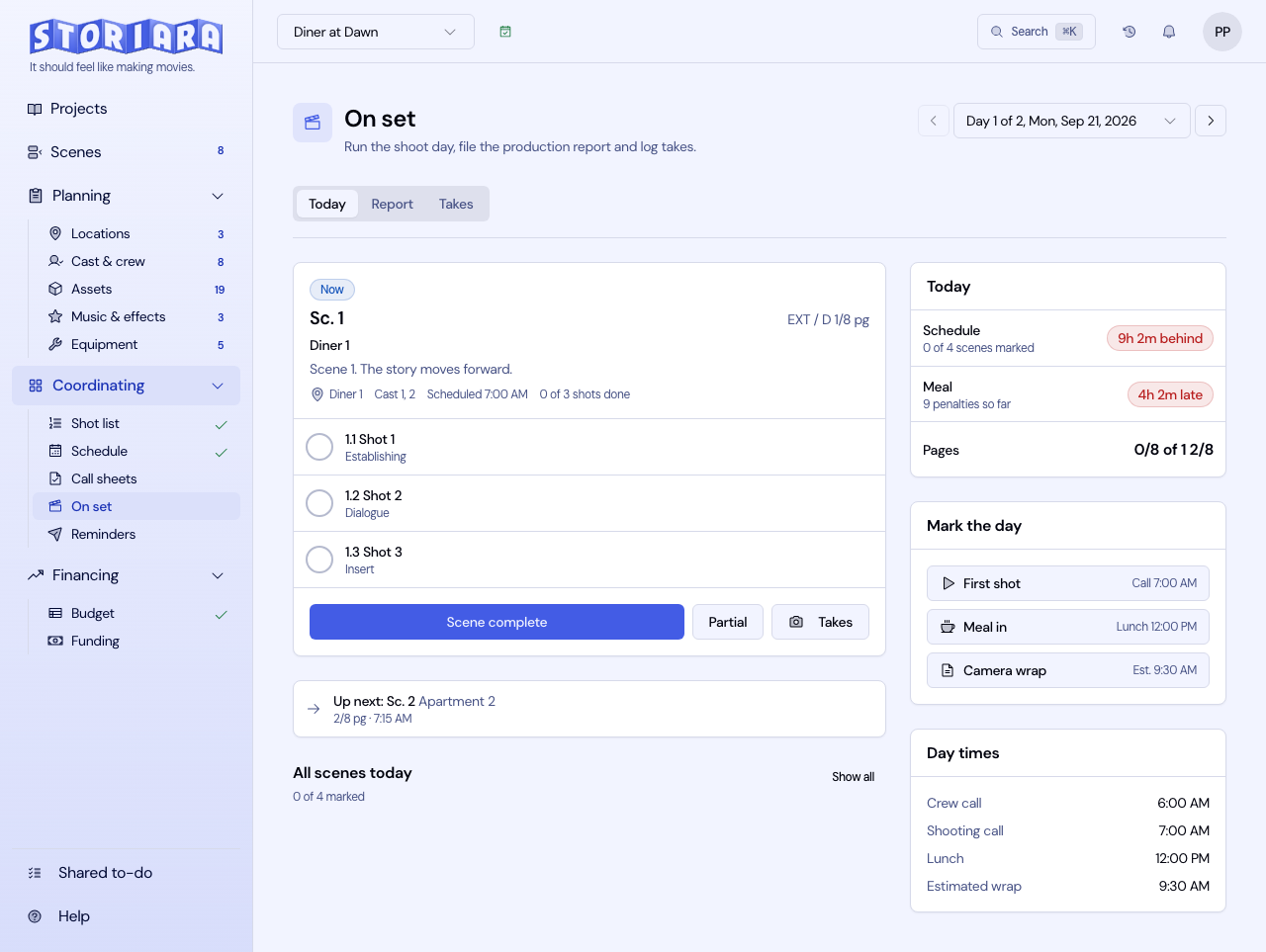
The Today tab is the day in one screen: the current scene on the left, and the day's status, the stamp buttons, and the day times down the right.
The status card holds three rows:
- Schedule. How far ahead or behind the day is running, in minutes. The clock starts at the scheduled shooting call, so a late first shot counts against you, and it stops while a meal is actually being taken. Finished work is credited at the plan, so each scene earns its share of the shooting window by page count, or its typed planned minutes when every scene of the day has one. A partial scene is credited by the eighths you shot. Under five minutes either way reads "On schedule", and 30 minutes or more behind turns red. Before anyone logs a first shot the card reads "Not started" with the crew call, rather than counting an unstarted day as late.
- Meal. A timer running six hours from crew call, or from the end of the last meal. It goes amber in the last 30 minutes. Past due it counts penalty units, one for every half hour or part of one, which is the arithmetic you would otherwise be doing on the back of a sides page. While a meal is running it shows the minutes in. Camera wrap stops it.
- Pages. Eighths shot against eighths scheduled for the day.
Mark the day beside it holds First shot, Meal in and Camera wrap, each stamping the current time and showing the scheduled time beside it until you do. Camera wrap opens the production report. Under that, Day times lists crew call, shooting call, lunch and estimated wrap, so the plan is in view while you record what happened.
Under that, Now is the first scene not yet marked complete: its number, set, synopsis, cast ID numbers, scheduled time, and its shots as a list you tick off one at a time. Mark the scene Complete, or Partial and tap the eighths you got, or open Takes for that scene. Up next and All scenes today carry the same controls, so you can mark work done out of order when the board moves during the day.
Scenes a report marks complete show greyed with a check on the stripboard, and partial scenes get a dashed mark, so the 1st AD reading the board sees the day's progress without opening this page.
Every edit here is written field by field, so the page keeps working in a canyon with no signal and syncs when the phone finds the network again. The header says when it is holding changes. Scene status is stored per scene and ticked shots per shot, so two phones marking different scenes do not overwrite each other. Continuity photo uploads are the exception; those need a connection and say so.
The daily production report
The Report tab is the day's production report, prefilled from the call sheet so the scheduled figures are already sitting under the boxes you are filling in.
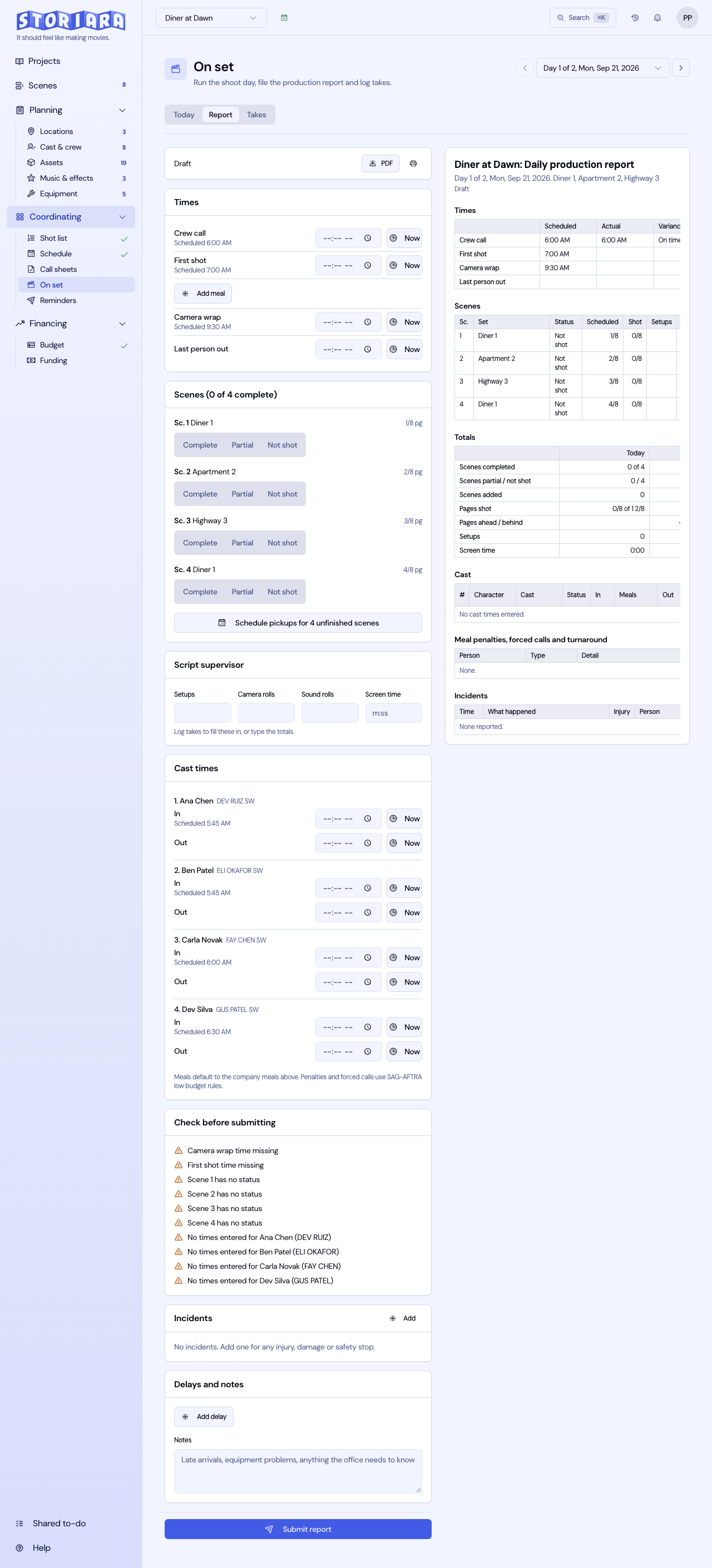
- Times. Crew call, first shot, meals in and out, camera wrap, and last person out, each with a large Now button and the scheduled time printed underneath. Add extra meals if the day ran a second one.
- Scenes. Each scheduled scene is Complete, Partial, or Not shot, with eighths shot for partials, a setup count, and a notes field. Scenes you added on the day go in here too.
- Script supervisor totals. Setups, camera rolls, sound rolls, and screen time. Leave a box blank and it fills from the take log, counting distinct scene and setup pairs for setups and distinct roll names for rolls.
- Cast times. In and out per actor, reported and dismissed, with meals and remarks. Meals default to the company meals, so you only type the exceptions.
- Incidents, then Delays and notes. Time, what happened, whether anyone was injured, who, and what was done about it, plus delays and anything the production office should know.
Check before submitting sits above the submit button and lists what is missing or what the day broke: no camera wrap time, a scene with no status, an actor with no times, and the meal penalties, forced calls and turnaround problems the labor rules find. The rules carried are SAG-AFTRA low budget for cast and IATSE LBTA for crew. Read the list and fix what is wrong rather than clearing it, because these are the lines a payroll accountant will ask about.
The printed report builds itself beside the form as you type, with times against scheduled and a variance column, scenes with status and eighths, the day's totals, cast times, penalties, and incidents.
Submit locks the report. The owner and producers get Reopen as revision 2, which puts it back into draft for the fix and submits it again, and each submission is stored as its own revision, so the first version is still there when someone asks what changed.
Schedule pickups for the unfinished scenes proposes a day for anything you marked partial or not shot, keeping the same location where it can. Accept the ones you want and they are written to the board exactly as a drag would write them: unshot strips move, and a partial scene gets a pickup strip carrying the share you have left, with a note.
PDF downloads the report, and Print on desktop prints the same tables the form filled in.
The take log
The Takes tab is the script supervisor's log, and it is designed for one hand on a phone while the other holds the lined script.
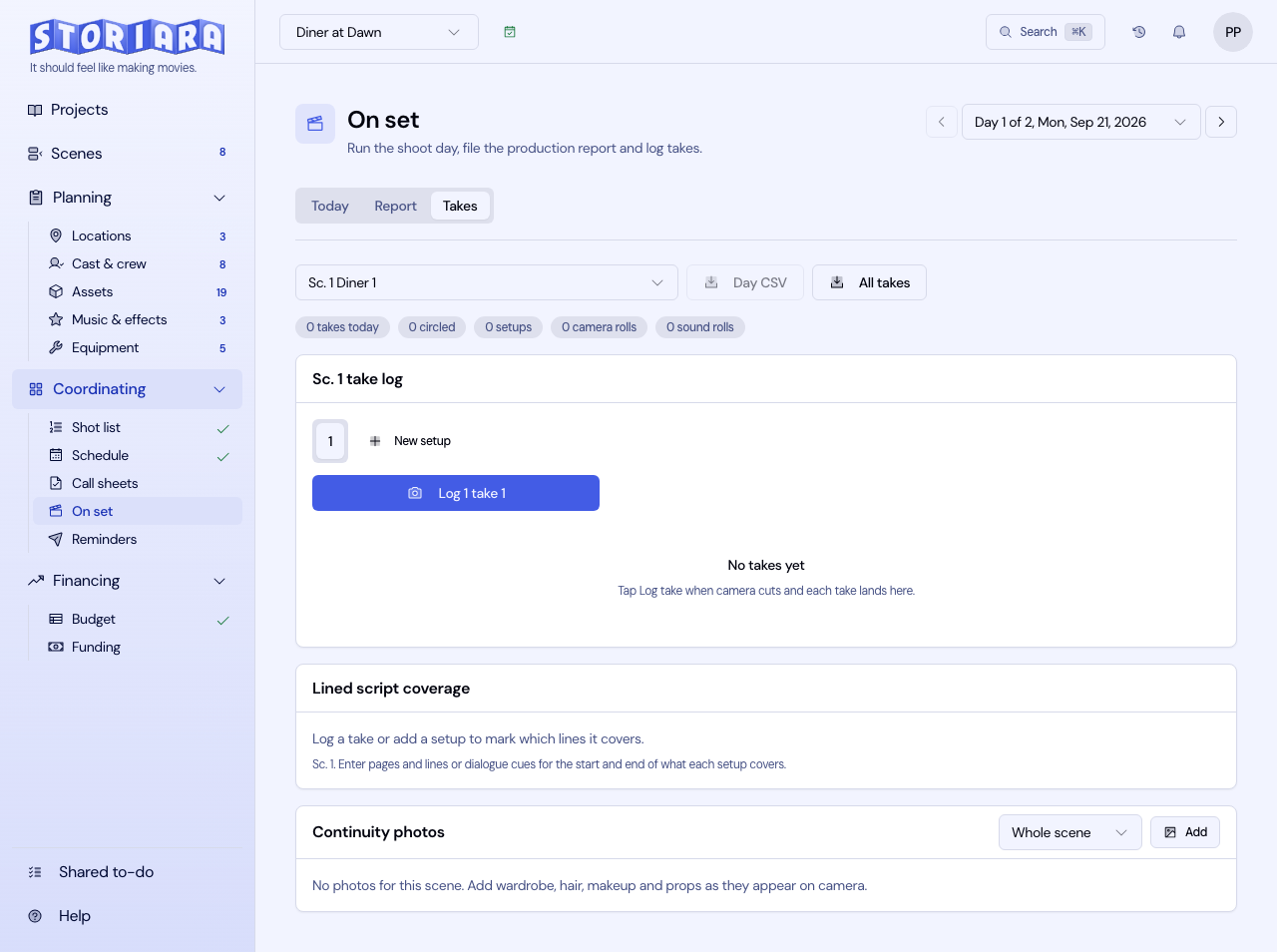
- Pick the scene, then the setup. Setups are labelled the way the slate reads them, 12, 12A, 12B, with I and O skipped, and takes number from 1 within each setup.
- Log take is one big button. It stamps the time and carries camera, lens, and roll numbers forward from the last take, so a normal take is a single tap.
- Tap a take's number to circle it. Type a duration as m:ss. Open the sheet on a take to set setup, camera, lens, camera roll, sound roll, and notes.
- Coverage records, per setup, a description and the line ranges it covers, given as page and line or as a dialogue cue. This is the lined script as data. Storiara does not draw lines on the script PDF.
- Continuity photos attach per scene, and optionally per character, with captions. Images are compressed on upload.
- On the Scenes page, Takes in a scene's row opens that scene's log across every day it shot, with its continuity photos and a CSV for the scene.
Day CSV and All takes export for editorial with the columns a post supervisor expects: Date, Scene, Setup, Take, Circle, Time, Duration, Camera, Camera roll, Sound roll, Lens, Notes.
What crew members can see
A collaborator with Crew (view) access reads the company times, scene status, the script supervisor totals, and the take log. They do not see cast times, meal penalties, forced calls, incidents, or the submitted revisions, because those name people, injuries, and money.
Limits
- Crew in and out times per person are not on the phone form. Cast only.
- Continuity photos are not queued for upload while offline.
- Cast pay figures from the report are not posted to the cost report on the Budget page.
- The report does not check anything against the actual agreement your production signed. The rules it carries are SAG-AFTRA low budget and IATSE LBTA.
- There is no Exhibit G export.
Related
- Schedule, Callsheets, Shotlist
- How to send a call sheet, How to build a stripboard
- Glossary: circle take, setup, martini shot, wrap, forced call
- Templates: continuity log, daily production report
- Guides: on-set operations, meal penalties explained