Getting Started
Storiara reads a screenplay and builds a working pre-production file from it: a scene list with page counts, plus the locations, characters, props, wardrobe, and effects it finds on the page. You check that first pass, then schedule, budget, and send call sheets from the same data. This page takes you from signup to a scene list you can trust.
Create an account
- Go to app.storiara.com/signup.
- Sign up with an email address and password, or use Google or Apple sign-in.
- If the app asks you to verify your email, click the link in the message it sends.
New accounts start on the free Beginner plan with a 7-day trial that allows unlimited stories, and a banner on My Stories counts down the days left. When the 7 days are up, the dashboard shows a Your Free Trial Has Ended screen and you'll need a paid plan to keep working in your projects (Account Settings stays reachable). Producer costs $39.99 a month and includes one seat; each extra collaborator is $19.99 a month. Studio pricing is by quote.
Get the script ready before you upload
Scene detection reads your scene headings, so the cleaner the headings, the cleaner the scene list. Storiara recognizes headings that start with INT., EXT., EST., or I/E, and it handles numbered headings like 42A INT. PARKING GARAGE - NIGHT 42A. INT/EXT, the setting name, and day or night come straight from that line.
A few things worth fixing in your screenwriting app first:
- Headings that skip the INT or EXT prefix ("KITCHEN - LATER") won't start a new scene.
- If the script is locked and numbered, upload that version. Scene numbers are how your 1st AD, script supervisor, and department heads will talk about the work, and they should match what's on the page.
- Upload a PDF, Word (.docx), Final Draft (.fdx), Fountain, Highland, Celtx, or WriterDuet (.wdz) file. A Final Draft file is the best source when you have one, because its scene numbers and page lengths are read directly. A PDF must have selectable text. A scan is refused with a message that it has no readable text.
- If the script is for a series, create a show first and add each episode inside it. See how to create a TV show and add episodes.
Upload the script and create the story
- On Projects, click New project.
- On the Start telling your story... screen, under Scripted content, click Upload script (.pdf, .docx). The note under the button lists every format the picker takes: PDF, DOCX, Final Draft (.fdx), Fountain, Highland, Celtx, and WriterDuet (.wdz).
- Click Analyze. Storiara reads the script and proposes a Title, Genre, and Tags.
- Correct anything that's off. Title and Genre are required.
- Click Approve & continue (during signup the button says Approve & Sign Up).
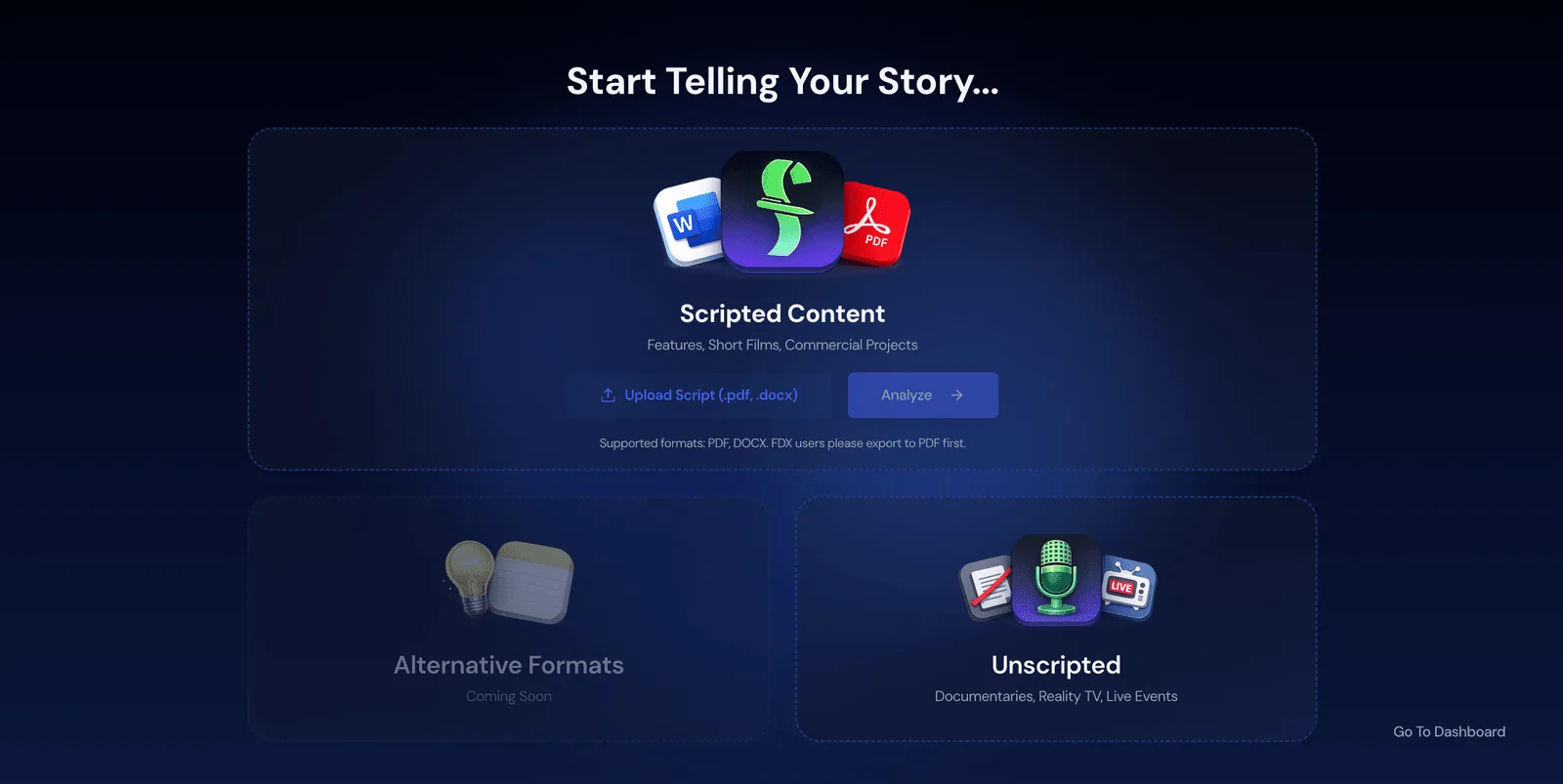
This screenshot is from an earlier version. The upload now takes the formats listed above directly.
The same screen has other starting points. Unscripted creates a project for documentaries, reality, or live events without a script, and you can upload one later. Alternative formats is for podcasts, microdramas, and video essays built from notes and supporting documents, and it may not be available on your account. If you have no projects yet, Explore templates opens a sample production you can click around in before committing your own script. More ways to start on the Projects page also has Switching from Movie Magic or StudioBinder, which brings in a schedule export and contacts.
What Storiara does after you approve
A banner reading "Pulling your production plan..." walks through each step as it runs: extracting scenes, enriching scene details, identifying locations, identifying cast, breaking down props and wardrobe, breaking down effects and sound, and analyzing continuity. Results appear in the modules as they finish, so you can open Scenes before the whole pull is done.
Scene splitting follows the headings exactly. Scene descriptions, time of day, and the element lists are written by AI, and each AI item is checked against a quote from the script before it's kept. If a step fails, Storiara retries it on its own, and the Scenes page offers Retry Extraction. Anything you add or edit by hand survives a re-pull.
Work through the modules in this order
Every item in the sidebar works on whichever story you selected on My Stories. The order below mirrors how prep actually runs.
- Scenes. Compare the scene count to your script, then fix INT/EXT, day or night, and page eighths where they're wrong.
- Script & Breakdown View (the tab on the right edge of the screen). Tag anything the pull missed.
- Cast & Crew, Locations, Assets, Music & Effects, and Equipment. Add real people, addresses, and rates.
- Schedule. Pick the first shoot day, add days, then drag scenes onto them.
- Budget and Funding. Start the budget from a built-in chart, your own Movie Magic template, or a budget you already have, then tag it for incentives.
- Callsheets and Reminders.
- On set, once you're shooting.
The Planning items, Shot list, and Schedule open as soon as the story has scenes. Callsheets opens once production dates are set. A sidebar tooltip that says "Needs approved scenes" just means no scenes exist yet; there is no approval step to complete.
Once there is a schedule and a budget, the lightbulb button at the top of every page opens Savings, where suggested changes to both are listed with what each would save. See how to read the savings panel.
Habits that save time later
Build your shoot days before you start chasing availability. Availability requests to cast and crew need a production date range, and so does the call sheet.
On a phone, every page in the app renders and is editable. The bottom nav carries Scenes, Schedule, Today, Assets, and Sheets, with everything else under More, grouped the way the sidebar groups it. A collaborator with Crew (view) access gets Schedule, Sheets, and Crew view instead. You can install the web app to your home screen, and there is no native iOS or Android app.
The pages you use with the camera rolling are built for that. The On set Today tab and the production report keep working with no signal and sync when the phone finds the network, and so does a crew member's own call sheet link.
Limits to know on day one
- Scanned PDFs are not read. The script needs real text.
- The AI pull is a first pass. Expect to correct character names that appear in several forms (MOM, MARY, MARY (V.O.)) and props that were only implied.
- Uploading a new script to a project that already has one resets its scenes, breakdown, schedule, and budgets, and only the owner can do it. Upload the draft you plan to shoot.
Related
- How to import a script
- How to create a TV show and add episodes
- How to set up a budget
- How to retry scene extraction
- How to invite collaborators
- How to install Storiara as an app
- My Stories, Scenes, On set
- Glossary: script breakdown, shooting script, locked script
- Template: pre-production checklist
- Guide: pre-production basics