Cast & Crew
Cast & Crew holds two different lists that people often mix up: the characters in the script and the people you hire. The link between them is what makes the rest of Storiara work. When an actor is assigned to a character, the Day-Out-Of-Days knows which days they work, the budget can price those days, and the call sheet lists them on the right dates. The page has four tabs: Characters, Extras, Cast, and Crew.

Characters
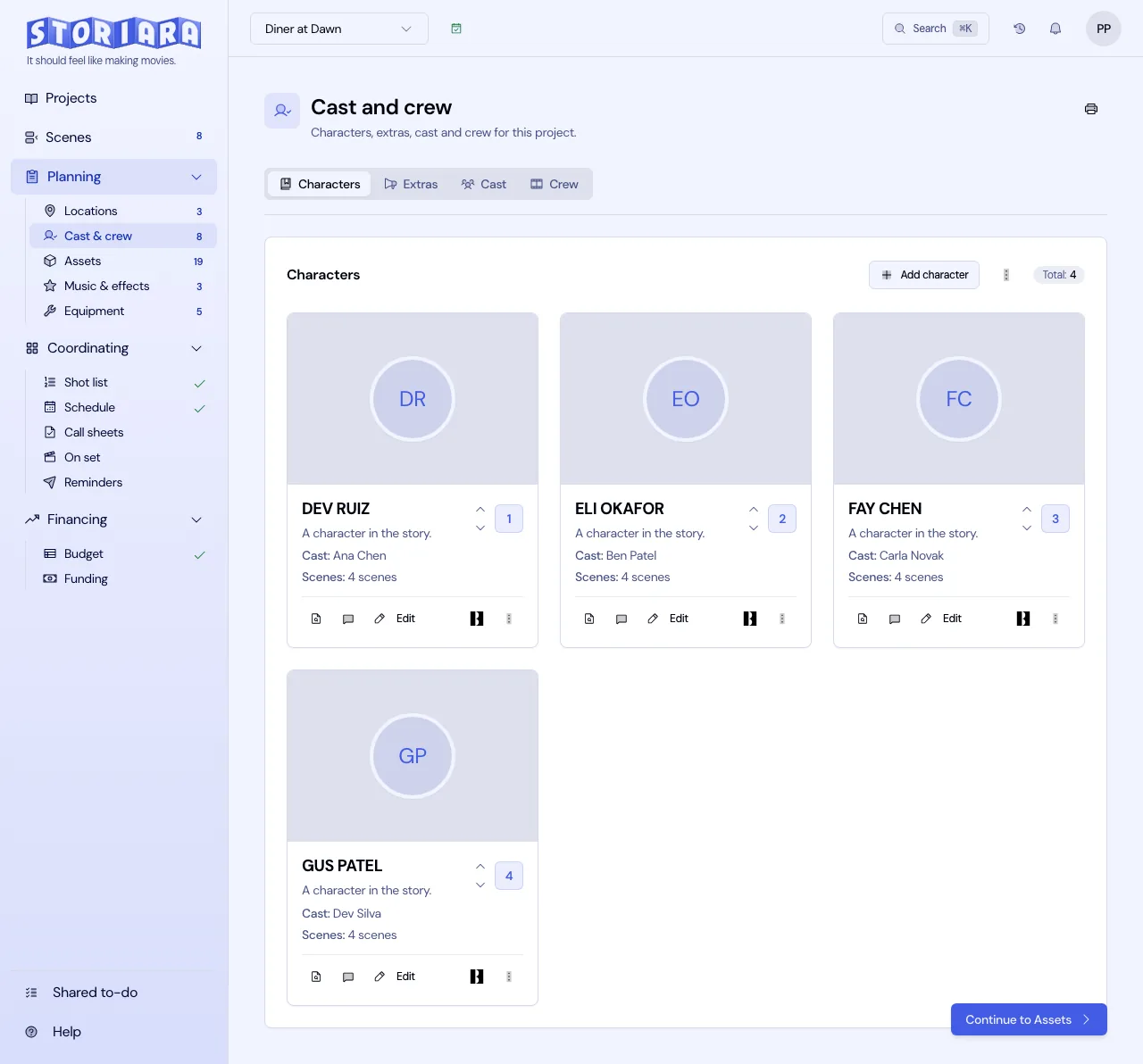
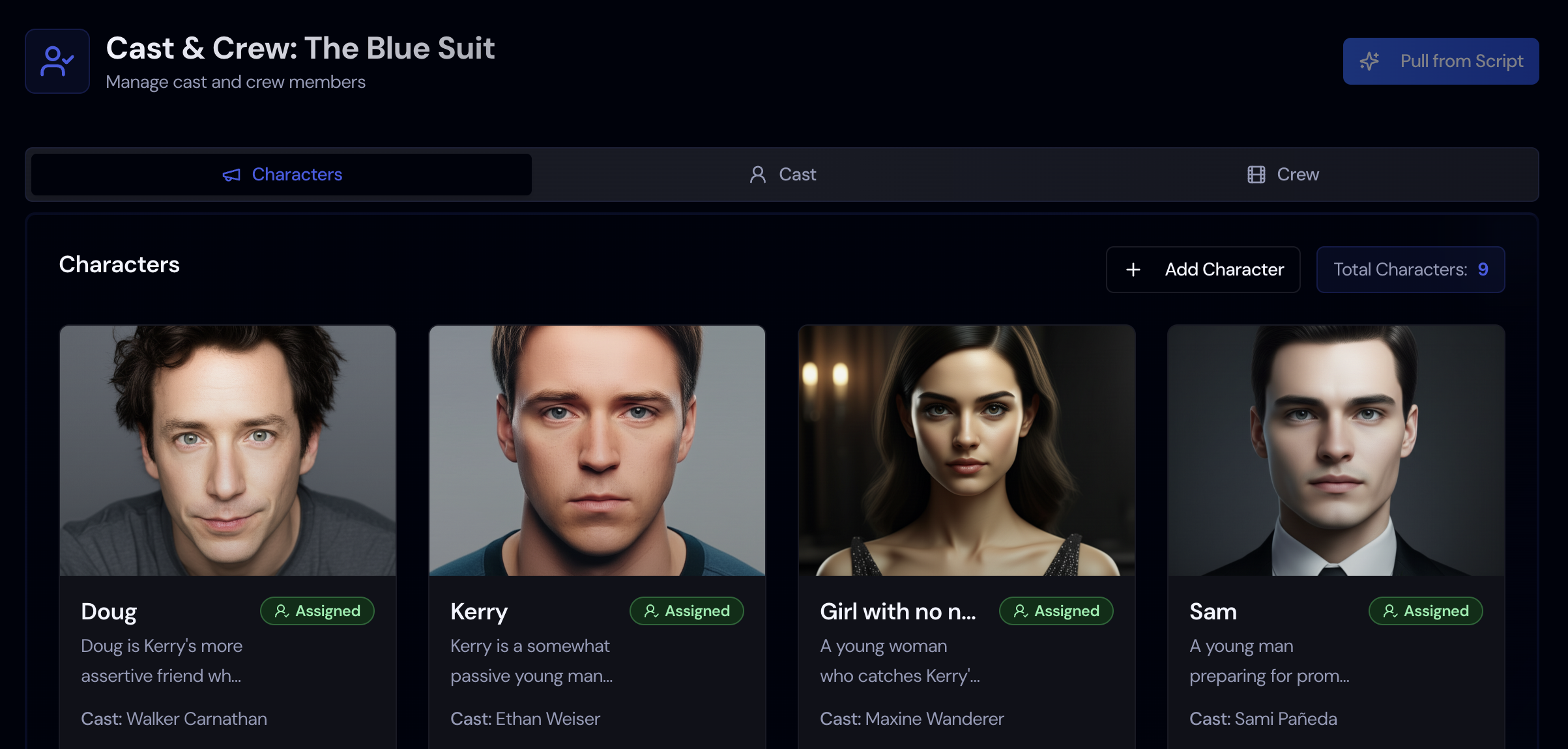
Characters and extras are pulled automatically when you upload a script (the Pull from Script button above is from an earlier version). After the pull, the Characters tab lists the characters AI found, each linked to the scenes they appear in. Check it against your cast list. Duplicates are common when a character is written several ways (JACK, OLD JACK, JACK (V.O.)), and one-line roles sometimes get missed.
To add or edit a character:
- Click Add Character, or Edit on a card.
- Enter Name, Description, and Notes.
- Under Scenes, pick every scene the character is in.
- Under Assign Cast Member (Optional), pick the actor once they're cast.
- Save.
Use the up and down arrows (tooltip "Change billing order") to set cast order. The Day-Out-Of-Days lists actors in this order, so put your lead at 1, the way a 1st AD numbers cast on the one-liner. If you fill in Visual Features (for AI Image), the Generate button creates a character portrait for lookbooks and casting decks. Each card also has Find in script and Comments.
Extras
The Extras tab is a scene-by-scene count of background.
- Click Add Extras.
- Pick the Scenes, enter the Number of Extras, and a description such as "Diner patrons, lunch rush".
- Choose Type: Atmosphere (Generic crowd) or Silent (Specific non-speaking role).
- Add Rate per Extra ($) and Rate Unit if you know them, plus any notes on age, look, or wardrobe.
Split silent bits from atmosphere even on a non-union show. The waitress who hands the lead a check needs a fitting and continuity notes; the twelve people in booths don't.
Cast
- On the Cast tab, click Add Cast Member.
- Enter First Name and Last Name (both required), Email, and Phone. Upload a headshot if you have one; Storiara crops to the face.
- Choose a Union Affiliation. For SAG-AFTRA and other unions, a Contract Type list appears and Storiara suggests day and week rates from its rate table.
- Set Rate Unit (Per Day, Per Week, Per Hour, or Per Project (Fixed)) and enter the rate from the deal memo.
- Save, then assign the actor to a character.
The suggested union rates come from a built-in table that may not match the agreement currently in force. Always enter the rate from the actual deal memo or the union's current rate sheet.
To pull an actor in from Backstage, click the Backstage button next to Add Cast Member, paste the profile address into Backstage Profile URL, and import. That brings in the name and profile image only.
Crew
- On the Crew tab, click Add Crew Member.
- Enter first and last name and at least one role under Roles. Type a role and press Enter; a person can hold several, like "Key Grip" and "Rigging Grip".
- Add Email and Phone.
- When the role matches one of Storiara's standard titles, it pre-selects a Union Affiliation (Gaffer suggests IATSE Local 728, for example). Change it if the person isn't in that local, pick a Contract Type if needed, and enter the rate.
Cast and crew can both be imported from a CSV or XLSX file with the upload button on each tab. Storiara maps your columns and shows a check table before anything is saved.
Collect availability
Availability requests need two things: an email on the person and production dates on the story. When both exist, a new cast or crew member gets a request as soon as you save them.
- On a person's card, click Send (or Resend). They get an email with a link to a form that needs no login.
- On the form they set Timezone, see the Shooting Dates and Production Hours, and drag across a 15-minute grid to mark when they're free. Sync with Google Calendar fills the grid from their calendar's busy times, with an optional buffer around events.
- When they submit, click View to see it, or Edit Availability to change it.
You can skip the email and click Set Availability to enter it yourself. The editor's Screenshot button reads a photo or screenshot of someone's calendar and fills the grid, which helps with the actor whose agent texts you a picture of their week. If someone is free for the whole shoot, click the X on the Needs Availability banner.
Availability shows up on the Schedule page's day sidebar as you build days.
Tips from production
Send availability requests right after you set dates, before you start moving strips. Day players booked on other shows are the first scheduling constraint you'll hit, and it's cheaper to build the board around them than to rebuild later.
Get emails on everyone, including day players and the utility on sound. Reminders and call sheet emails only go to people with an email address, and the send dialog flags anyone missing one as "(No email)".
Limits
- No fields for dietary needs, emergency contacts, sizes, or start paperwork. Use Notes or keep them in your crew list.
- Backstage import takes name and photo only.
- Union rate suggestions are not a substitute for the current agreement.
- Google Calendar is read-only and only on the availability form. Nothing is written back to anyone's calendar.
- Casting search, auditions, and offers aren't part of the page.
Related
- How to import cast from Backstage
- How to send availability requests
- How to import availability from Google Calendar
- How to import contacts from a spreadsheet
- Day out of Days and Callsheets
- Glossary: background actors, featured extra, deal memo, day rate
- Templates: crew contact list, cast deal memo, casting breakdown
- Guides: SAG-AFTRA low budget agreements, how to hire a film crew