Locations
The script says INT. COFFEE SHOP - DAY. The Locations page is where that setting becomes an actual place with an address, a fee, a parking plan, and dates it's available. Those details feed the map, the call sheet, the budget's location line, and the Funding page's incentive matching, so a location without an address is a gap in several places at once.

What's already there after the pull
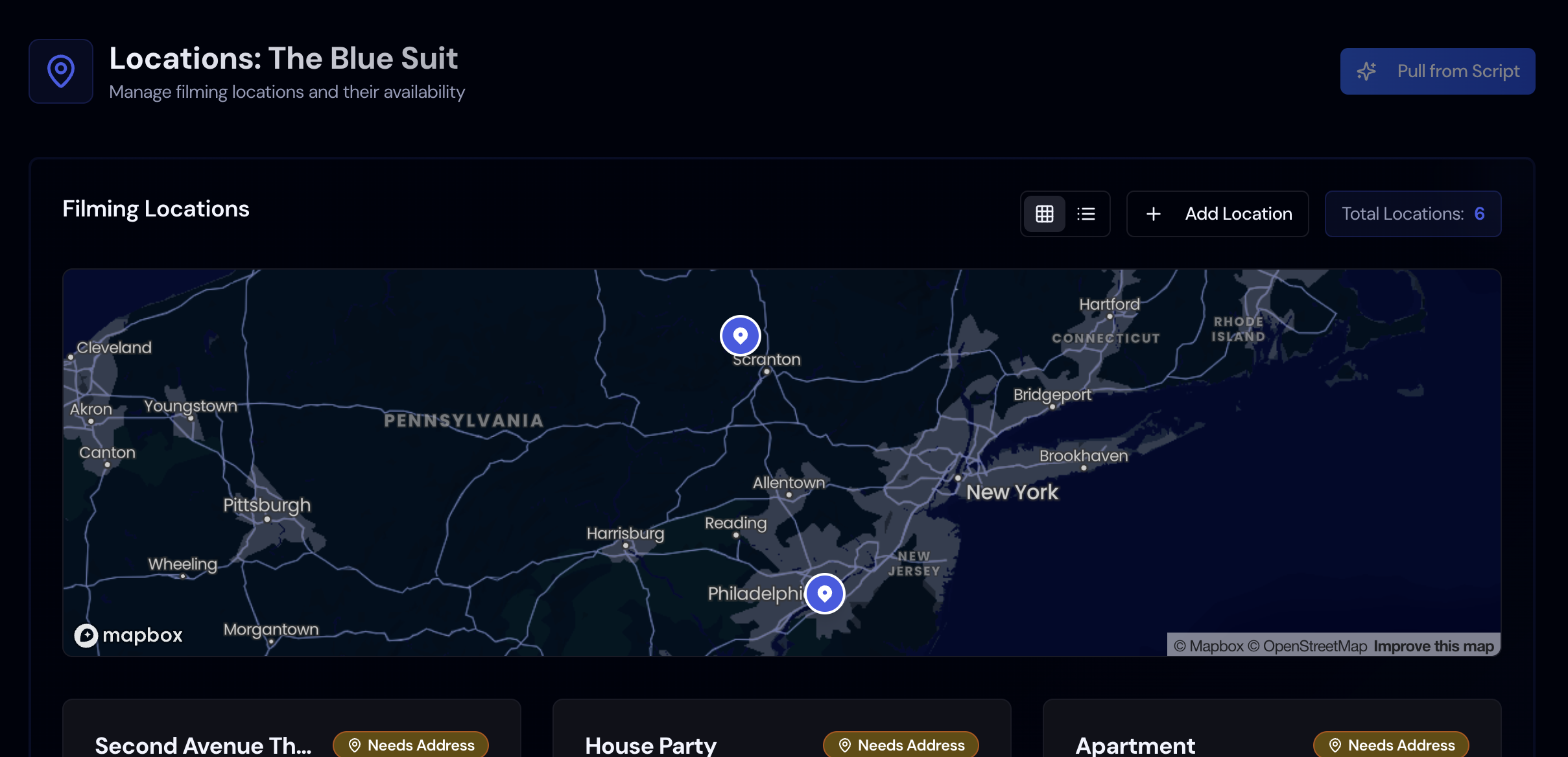
The Pull from Script button shown above is gone from current versions; locations are pulled automatically when you upload a script. Storiara lists each setting it finds in the scene headings as a location, with its type and the scenes it appears in. Those entries have names but no addresses, so each card starts with a Needs Address banner. Once you add an address, the banner changes to Needs Availability. When both are filled in, the banner disappears. Locations are sorted with the ones that need an address first.
That progress is the only status Storiara tracks for a location. There is no "approved" or "locked" flag for signed deals, so track contracts and certificates of insurance outside the app or in the location's Notes.
Add or edit a location
- Open Locations in the Planning group. The header reads Locations: followed by the story title.
- Click Add Location, or open an existing card and click Edit.
- Fill in the form:
- Location Name, for example "Rosie's Diner" (the placeholder suggests "Coffee Shop, Central Park").
- Type: Interior (INT), Exterior (EXT), or Interior/Exterior (INT/EXT).
- Time of Day: Unspecified, Day, Night, Dawn, Dusk, Morning, Afternoon, or Evening.
- Specific Address (Optional). Start typing and pick from the address suggestions.
- Description and Notes for access, power, noise, and restrictions.
- Scenes: pick every scene that shoots here.
- Location Photos (Optional): click Add Photos.
- Parking Map (Optional): click Upload Parking Map.
- Estimated Fee ($) and Fee Unit: Per Day, Per Week, Per Hour, Per Use, or Purchase.
- Click Add Location or Update Location.
To add a location from the script instead, highlight the setting in the Script & Breakdown View and choose Add as Location. The form opens with the name, description, and scene filled in.
One real place, several script settings
Productions cheat locations constantly. A rented house can be the Apartment, the Therapist's Office, and the Upstairs Hallway. To set that up, edit the house's location, add the scenes from all three settings under Scenes, and delete the separate entries you no longer need. The schedule's Select scenes from location picker then pulls all of those scenes onto a day in one step, which is how you avoid a company move you didn't need.
Set availability
- On a card with Needs Availability, click the banner or choose Availability.
- If you haven't set production dates yet, Storiara asks you to do that first.
- Pick a Timezone and Date Range, then drag across the 15-minute grid under Select Available Times. All, Weekdays, Weekends, and None fill the grid quickly.
- Click Save Availability.
If a location is open for the whole shoot, click the small X on the banner (tooltip "Mark as always available"). Availability shows up in the Schedule page's day sidebar so you can see a conflict while you build a day.
Other things you can do on the page
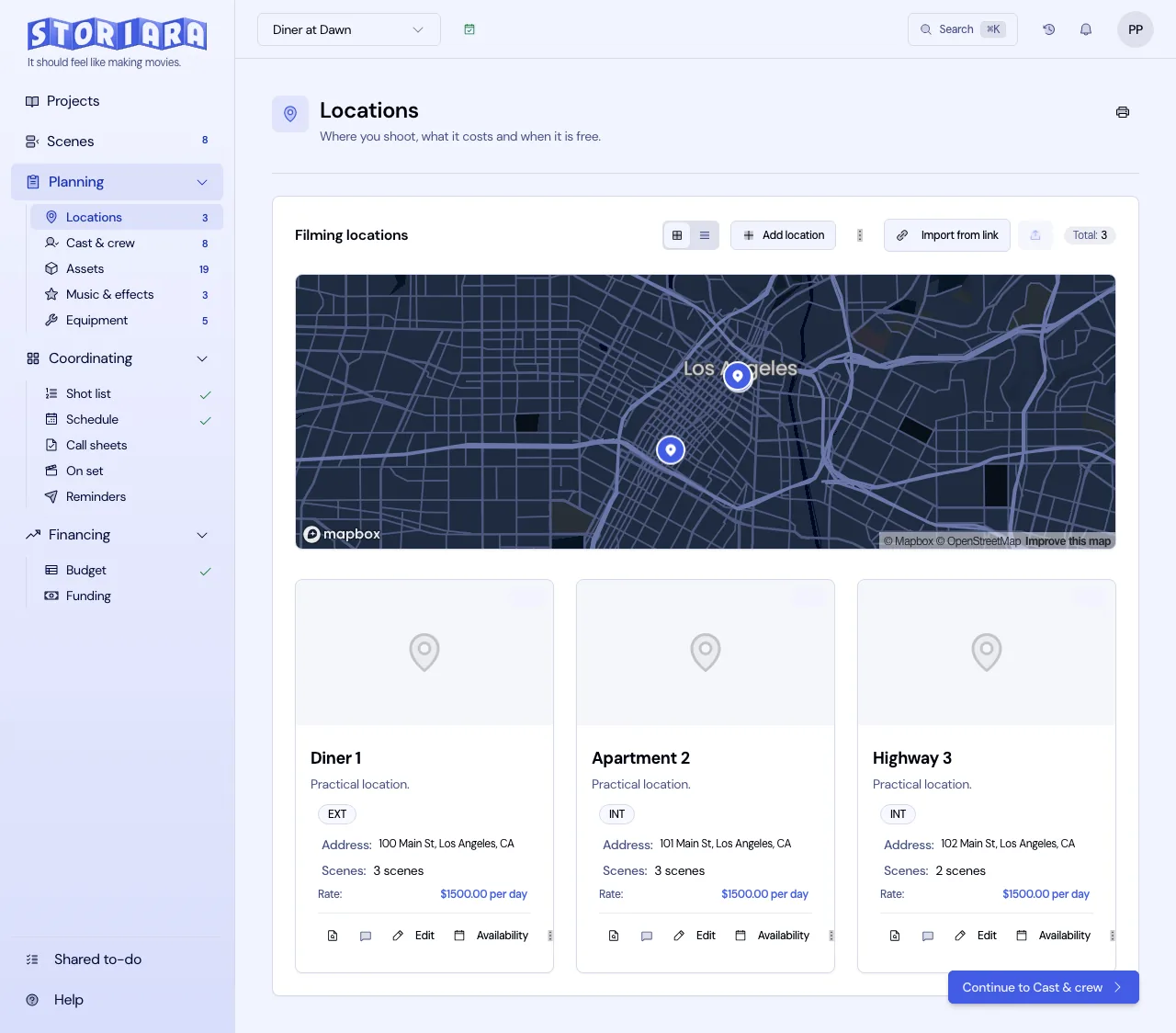
- The map at the top shows every location that has an address.
- View Parking Map opens the uploaded plan. Replace or remove it from the edit form.
- Find in script jumps to where the setting appears. The speech bubble opens Comments for notes between the location manager and producer.
- Switch between grid and list view.
- Click the fee on a card to change it without opening the full form.
- Use the upload button to import locations from a CSV or XLSX file. Storiara maps the columns and shows a table to fix errors before import.
- The three-dot menu has Select Multiple for bulk delete, and Delete All, which asks you to type DELETE ALL.
- The printer icon prints the location list.
Tips from location work
Put the full street address in, not "Rosie's, Burbank". The Funding page matches incentives by reading addresses and names for the state, province, or country, and it only counts locations that have an address. The call sheet also uses addresses for its location blocks.
Upload the parking map the location manager draws for the tech scout. It's the page drivers and crew ask for at 5:30 in the morning, and having it on the location keeps it with the rest of the details.
Watch how the estimated total is worked out. Storiara assumes one shoot day per linked scene, so a Per Day fee is multiplied by the number of scenes on the location, a Per Week fee by the scene count divided by 7 (rounded up), and a Per Hour fee by 8 hours per scene. Purchase is a flat amount. That total is what lands on the budget's 3600 Location Expenses line.
On a house with 12 scenes that you'll actually shoot in 3 days at $2,500 a day, Per Day gives 12 x $2,500 = $30,000, when the deal is 3 x $2,500 = $7,500. For locations with many short scenes, enter the full deal amount as Purchase ($7,500) and put the day rate, prep, strike, and hold days in Notes.
Limits
- No document storage for location agreements, permits, or COIs. Photos and a parking map are the only uploads.
- No approval or contract status.
- Fee totals assume one day per linked scene, as described above.
- There's no scouting database or permit lookup.
- Location detail is not available in the mobile view.
- The only export is print.