Budget
The Budget page holds one budget per project, laid out the way Movie Magic Budgeting lays one out: a topsheet, categories, accounts, and detail lines, with fringes, globals, groups, and charges behind them. You can start from a built-in chart of accounts, from your own Movie Magic template, or from a budget you already have. Storiara can fill the chart with estimates from the script, scenes, cast, crew, and locations, and keep those estimates in step with the project afterwards.
The video and screenshots here predate the rebuilt grid, so the app looks newer than the pictures.
Three ways to start
With no budget yet, the page says No budget yet and offers three buttons. Only roles with budget edit access can use them.
| Button | What it does |
|---|---|
| Set up budget | Opens the setup dialog. You pick a built-in chart of accounts and answer a few questions. |
| Upload a template | Takes a Movie Magic Budgeting file (.mmbx), then opens the same setup dialog. Estimates fill that chart of accounts. |
| Upload an existing budget | Takes a .mmbx file that already has figures and keeps it as it is. Nothing is asked. The setup is read from the budget. |
The how-to pages cover each one: set up a budget, upload a Movie Magic template, and upload an existing budget.
The setup dialog
The dialog has three steps: Production, Schedule, and Financial.
On Production, Start from lists Feature film, Low-budget feature (the feature chart without a bond), Blank (topsheet sections only), and Upload a template. Under it is the Fill in estimates switch. Leave it on and the estimates fill the chart. Turn it off and the budget is created from the chart with nothing filled in, which is what you want when you plan to type your own numbers. The button then reads Create budget and the remaining questions are skipped.
With estimates on, you choose a Format, a Production level, an optional Target budget, and a Union agreement. The six levels are Micro budget, Low budget, Independent, Mid budget, Studio, and Tentpole. Each one shows its range and typical total for the format you picked, and sets typical deals, crew size, rates, and packages. Choosing a level also fills the schedule step and suggests a union agreement, unless you already changed them. If you enter a target, the estimate scales its deals, allowances, and packages to land within about 2% of it, and never goes below guild minimums.
Schedule asks for shooting days (taken from the schedule when it has dates), prep and post weeks, and stage days. Financial asks for script pages, pages per day, Contingency, Completion bond, and Currency.
How an estimate is built
Click Set up budget on the last step and the page shows Building the budget with placeholder rows where the sheet will be. It takes about a minute. The build runs on Storiara's servers, so it keeps going if you reload, close the tab, or open the project on another computer, and the finished budget is there when you come back. If a build fails, a message stays on the page with Try again.
No dollar amount comes from AI. The script is read for counts and days only, such as speaking parts, locations, and stunt days. Every line is then priced by fixed rules for the level, format, and union agreement you chose, and filed into the accounts of the chart you started from. With an uploaded template, a handful of lines may have no obvious account. Those go to the department's general account and are listed for you to check.
When the budget is created, a message gives the grand total and says how it compares with the typical range for that level, for example that it lands at $7.2M where an independent feature film typically runs $3M to $15M. Treat the result as a first draft, and replace estimates with real deals and quotes as they come in.
Read and edit the grid
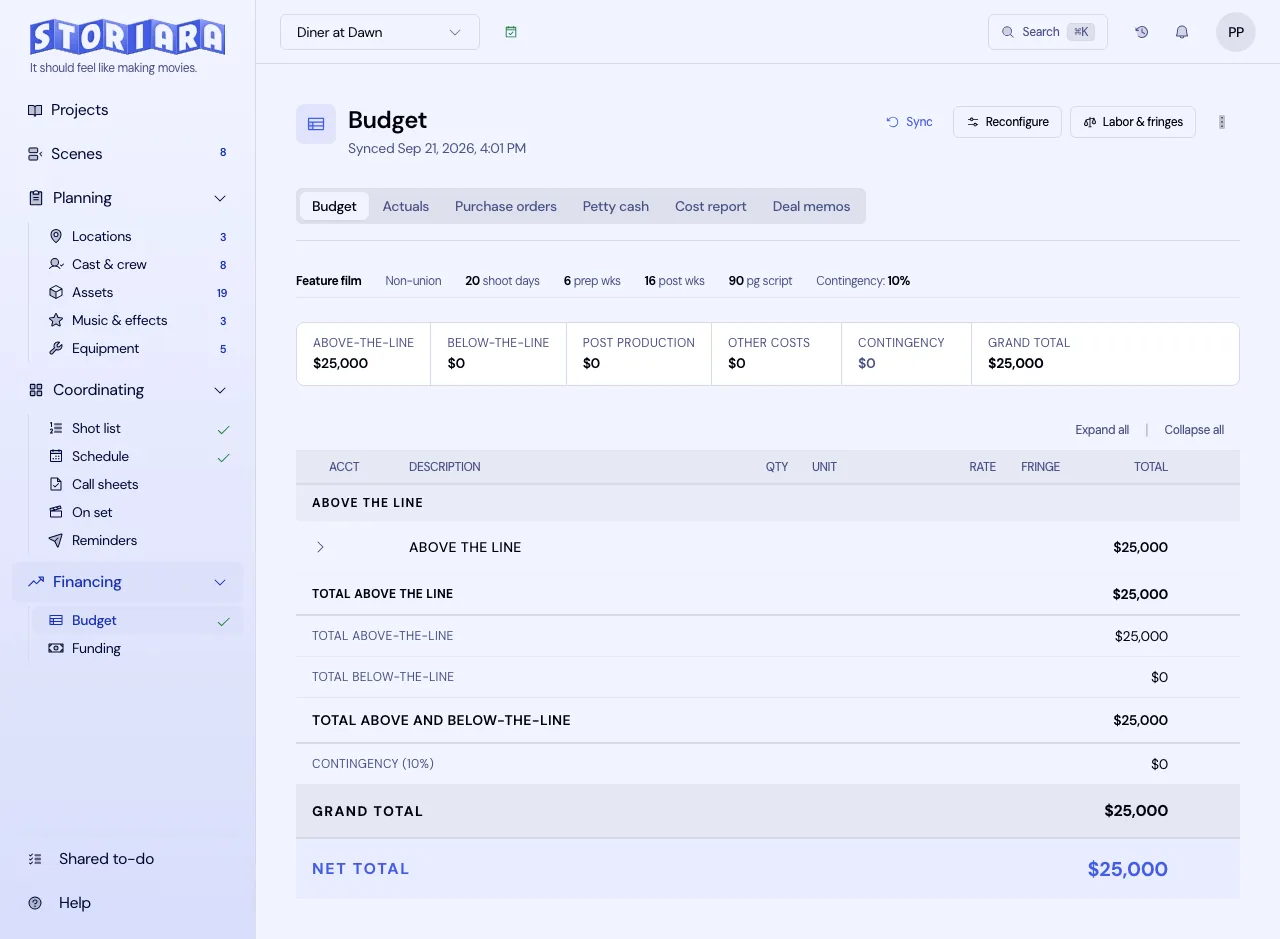
The page has six tabs: Budget, Actuals, Purchase orders, Petty cash, Cost report, and Deal memos. On the Budget tab, a line above the grid reads the setup back: format, level, union agreement, shoot days, prep and post weeks, script pages, and contingency.
The grid opens on the Topsheet. Press Enter on a category to open its accounts, and again on an account to open its detail lines. Esc goes back up a level. Type in a cell to edit it, and start with = for a formula.
The toolbar above the grid has:
- Setup, which holds the budget's fringes, globals, groups, sets, locations, units, currency, credits and charges, and budget info.
- Apply, which puts a fringe, group, set, location, currency, or incentive tag on the selected lines, or takes lines in or out of the totals.
- Find, for find and replace in descriptions.
- Compare, which locks the current totals as originals and shows Original and Variance columns.
- Columns, to show or hide Page, Fringes, Original, and Variance.
- Insert, delete, undo, and redo, then Import .mmbx, Export .mmbx, and Print.
The bar under the grid shows Above-the-line, Below-the-line, Fringes, Grand total, and Net, plus Net after incentives when the project tracks any. Beside it is the save state: Saved, Saving, Unsaved changes, or Read only for roles that can view but not edit.
Sync and Reconfigure
Sync in the page header updates a budget after the project changes: new cast or crew, a longer schedule, a different setup, a new script. It is only offered for budgets Storiara filled with estimates. A budget you uploaded to keep as it is, or created with Fill in estimates off, has no Sync button.
A sync is quick when the script has not changed, because the script reading is kept from last time. If nothing in the project changes what the budget should say, you get Budget is up to date and nothing else happens. Otherwise a review opens before anything is saved. It reads along the lines of "12 added, 3 updated, 1 edited lines kept, 2 to check", gives the grand total before and after, and lists the lines to check with a picker to move each one to another account. Click Apply to save, or close the dialog to leave the budget alone.
Sync never changes your categories, accounts, fringes, charges, or any line you imported, typed, or edited. See how to sync a budget.
Reconfigure reopens the setup dialog to change the level, target, union agreement, days, or contingency. On a budget with estimates it previews the new setup the same way a sync does. On a budget that was never filled, it offers Fill in estimates so you can add them later.
Movie Magic Budgeting files
Import .mmbx replaces the current budget with a Movie Magic Budgeting file after a confirmation that shows the total stored in the file beside Storiara's recalculated total. Export .mmbx downloads the budget as a file that opens in Movie Magic Budgeting. Storiara recalculates every line with the same rules, including fringe cutoffs, globals, groups, and charges, so an imported budget should total the same here as it did there. Large studio charts with hundreds of accounts import and fill the same way as small ones.
Movie Magic reports... in the three-dot menu builds the reports that program prints (Topsheet, Account Details, Category Summary, Chart of Accounts, and the setup lists) as PDF, Excel, or CSV. See how to export a budget to Movie Magic.
Incentive tags
Auto tag in the header tags every budget line for the incentive programs you choose and shows the estimated credit per program. It asks you to check only the lines it is unsure about. Tagging never changes the budget's numbers. See how to tag a budget for incentives and the Funding guide.
Savings suggestions
The lightbulb button at the top of the page opens Savings. The Producer Room, a set of six specialist reviewers, reads the schedule and budget and lists changes that would save money. A budget change is run through the budget's own calculation before it is shown, so the figure includes fringes and contingency. Apply makes the change in the grid as a normal edit. A suggestion closes on its own when the change is already in place, or when the line it refers to is deleted or edited so the saving is gone. See how to read the savings panel.
One budget for a TV show
A show has one budget shared by all its episodes. Each episode is a group in that budget, named like "EP 101", and lines in no episode group are shared costs. The reports dialog adds an Episode Totals Report on a show's budget. See how to create a TV show and add episodes.
Labor, exports, and delete
Labor & fringes in the header holds the union agreement and the fringe percentages behind labor lines. Load days brings cast paid days across from the Day Out of Days, and Recalculate cast lines shows every line it would change before you apply it. The three-dot menu has Export to Excel, Accounting export, Print, and Delete budget, which asks for confirmation.
Track what you actually spent
The other five tabs are the accounting side of the same accounts. Purchase orders are numbered, and an open PO counts as a commitment against its account. Actuals record what was spent, and a photographed receipt is read for vendor, date, amount, and a likely account for a person to confirm. Petty cash keeps an envelope per custodian. Cost report shows estimate, committed, actual, and estimate to complete per account, with the variance. Deal memos hold one memo per person per deal. Export to accounting on Actuals writes a CSV for QuickBooks Online or Xero, and Payroll export on Deal memos writes a payroll service CSV.
Limits
- Estimates are a starting point. Built-in rates and fringes are not guaranteed to match current agreements, so check them against the union's rate sheets.
- A sync is only available on budgets Storiara filled. An uploaded budget kept as it is stays as it is.
- Movie Magic files are the .mmbx format from Movie Magic Budgeting 10. Older .mbd files need to be opened and saved as .mmbx there first.
- No side-by-side scenarios. Duplicate the project to try an alternate.
Related
- How to set up a budget
- How to upload a Movie Magic template
- How to upload an existing budget
- How to sync a budget
- How to export a budget to Movie Magic
- How to tag a budget for incentives
- How to read the savings panel
- Funding, Day out of Days, Equipment
- Glossary: top sheet, above the line, below the line, fringes, contingency, completion bond
- Templates: film budget, budget top sheet
- Tool: film budget estimator
- Guides: above the line vs below the line, film chart of accounts