My Stories
The project list is where every session starts. In the app the page is called Projects (older screenshots and some guides here still say My Stories, and call a project a story). Each project holds a script, its versions, and everything built from it: scenes, breakdown, schedule, budget, and call sheets. Whichever project you select here is the one every sidebar page works on, so if the Schedule page looks wrong, check that you have the right project selected first.
Select and filter your projects
- Open Projects from the top of the sidebar.
- Under Select a project, click a card. It gets a highlighted border and a Selected tag.
- Use In progress and Completed to switch between active and finished projects. Each shows a count.
- Toggle between grid and list view with the two icons beside the filters.
Each card shows the genre, the Created and Updated dates, and the name of the active script. Badges flag projects that are Unscripted or Alternative formats, and projects someone else Shared with you.
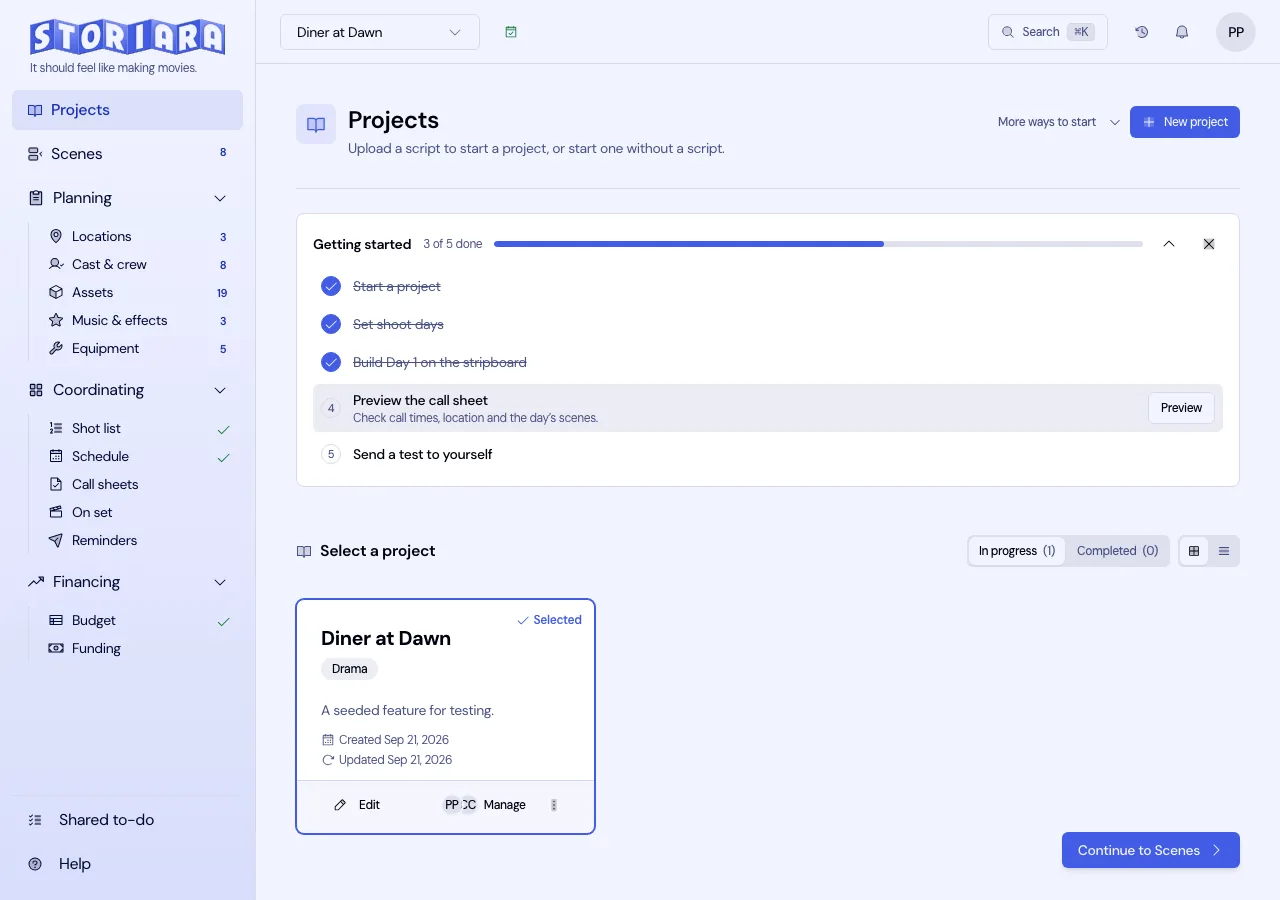
To start a new project, click New project. The upload and approval steps are covered in Getting Started. More ways to start beside it has Switching from Movie Magic or StudioBinder, New project from template, Import project from export, and Start without a script.
TV shows and episodes
A series is set up as a show. New show creates a container that holds one budget, one schedule, and the cast, crew, locations, characters, call sheets, and team its episodes share. Each episode holds its own script and scenes.
On the Projects page a show is a collapsible group with its episode count beside the name and its episodes listed underneath. Open show selects the show itself. The three-dot menu on the show's heading has New episode, Rename show, and, for the owner, Delete show. New episode runs the same flow as New project: upload the script, check the title and tags, and the breakdown runs. Episodes are numbered as you add them, so the first is 101.
Scenes and the shot list belong to an episode. The schedule, budget, cast and crew, locations, and call sheets belong to the show and open once any episode has scenes. See how to create a TV show and add episodes.
Edit a project's details
- Click Edit on the card.
- In Edit project details, change the Title, Genre, or Tags. Type a tag and press Enter to add it.
- Click Save changes.
The form changes with the project type. Alternative formats projects have a Supporting documents area (.pdf, .docx, .txt, or .pptx). Unscripted projects show Convert to scripted project, where uploading a script turns on scene extraction and script versions.
Replace the script
Storiara keeps every uploaded draft as a version under Scripts in the edit dialog, with its upload date and who uploaded it. The current one carries an Active badge.
Uploading a new script to a project that already has one resets the project, and only the owner can do it. Click Upload script, choose the file, and a dialog titled Replace the script and reset this project? spells out what happens. For everyone on the project it deletes the scenes and shots, the whole breakdown, the schedule (stripboards, shoot days, day breaks, and Day Out of Days), the budgets, and the script revision history. It keeps earlier script versions, cast and crew, equipment, documents, accounting, call sheets already sent, and on-set reports. Click Reset and regenerate to go ahead. It can't be undone.
Anyone else who tries gets "Only the owner can replace the script". An editor can still give an empty project its first script.
Because a new script is a reset, settle the script before you build a schedule and budget on it. If you only want to try an earlier draft, clicking a version already in the Scripts list asks Re-pull content from this script? and re-pulls scenes and elements from that version while keeping what you added by hand.
Duplicate, export, print, complete, or delete
Open the three-dot menu on a card:
- Mark as completed moves the project to the Completed filter. Mark as in progress moves it back.
- Duplicate copies the project into a new one you own. Sharing and sent call sheets are not copied. Use it to try a second version of a schedule or budget without touching the original.
- Save as company template keeps the project as a starting point for New project from template.
- Export project downloads the project as a file that Import project from export can read back in.
- Print all assembles the whole project into one print view. Choose "Save as PDF" in the browser's print dialog if you need a file.
- Delete asks you to type the exact project name before it removes the project.
Which items appear depends on your role on that project.
Share a project with collaborators
- Click the collaborators button on the card. It reads Manage if you can invite people and View if you can't.
- In the Share dialog, under Invite by email, type the person's email address and choose a role. Department head and Crew (view) also ask for a department.
- If they already have a Storiara account they are added at once. If they don't, they get an invitation by email and appear under Pending invites until they sign up.
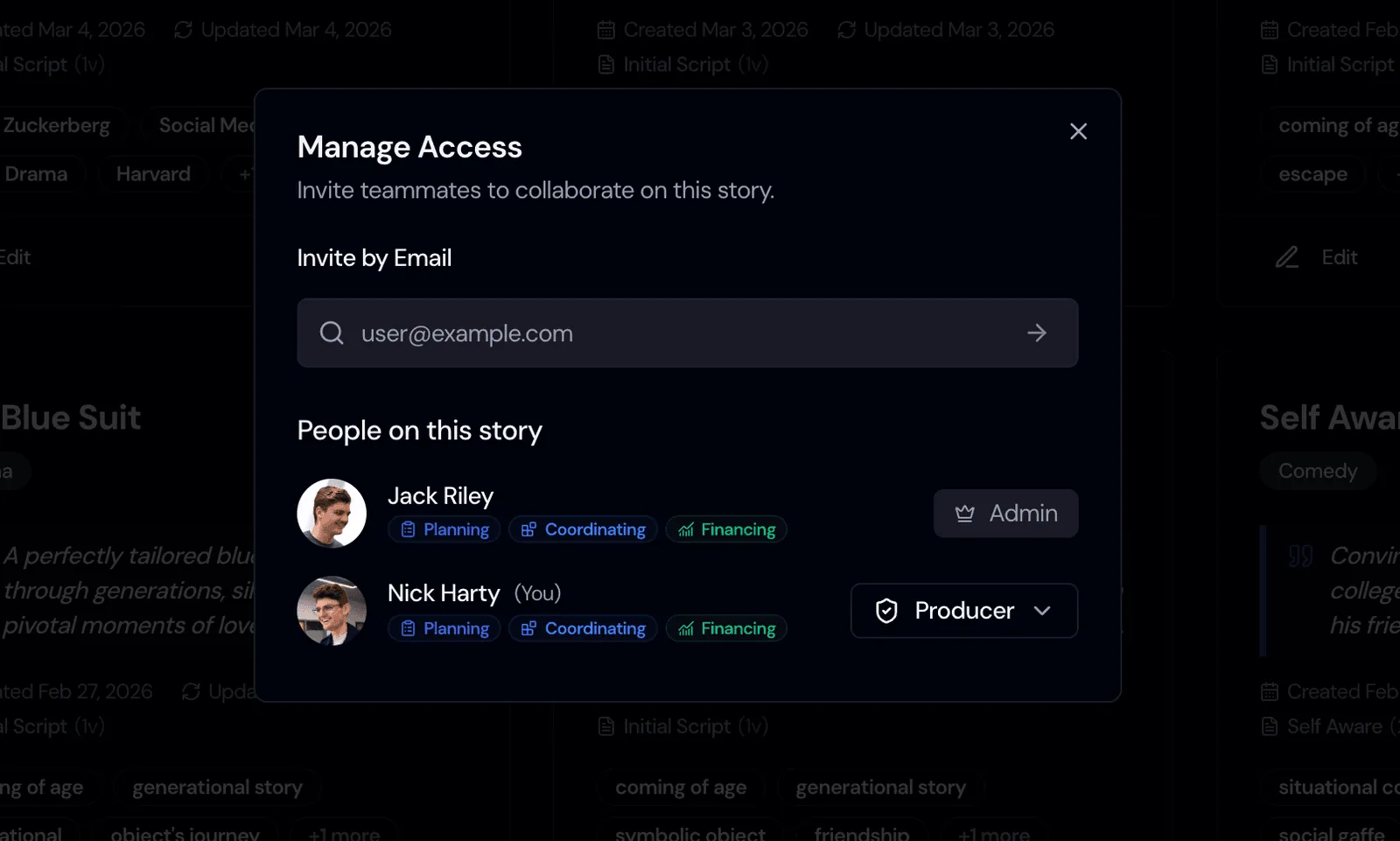
Everyone already on the project is listed under People with access. The role decides what a person can change:
| Role | What they can do | Budget and funding |
|---|---|---|
| Owner | Everything, including billing, roles, and deleting the project | Yes |
| Producer | Edits everything and can invite people | Yes |
| Assistant director | Edits scenes, schedule, call sheets, and elements | No |
| Cinematographer | Edits shots, schedule, and call sheets | No |
| Department head | Edits their own department's elements and sees the rest read-only | No |
| Accountant | Edits the budget and funding | Yes |
| Crew (view) | Sees call sheets, the schedule, and their department. Can confirm items and upload files | No |
Crew (view) is free. The other invited roles take a paid seat on the owner's plan. Departments are Props and set dressing, Wardrobe, Hair and makeup, Camera, Grip and electric, Sound, VFX, music and stunts, Transportation, and Locations.
A show is shared once, at the show. Everyone on the show has the same role on every episode.
Give department heads the narrowest role that covers their work. The budget is the page you least want edited by accident, and only the Owner, Producer, and Accountant roles can open it. If someone's access is removed while they have the project open, the project closes for them and says so.
What this page doesn't do
- Completion indicators for each page live in the sidebar, not on the project cards.
- Plan and seat management is in account settings, not here.
- After the 7-day trial, you need a paid plan to keep working in your projects. A note counts down the days left.
- A standalone project can't be moved into a show, and an episode can't be moved out of one.
Related
- How to import a script
- How to upload a new script version
- How to create a TV show and add episodes
- How to duplicate a story
- How to invite collaborators
- How to set collaborator permissions
- Glossary: revision colors, A-scenes, omitted scene
- Template: pre-production checklist
- Guide: script revision colors