Reminders
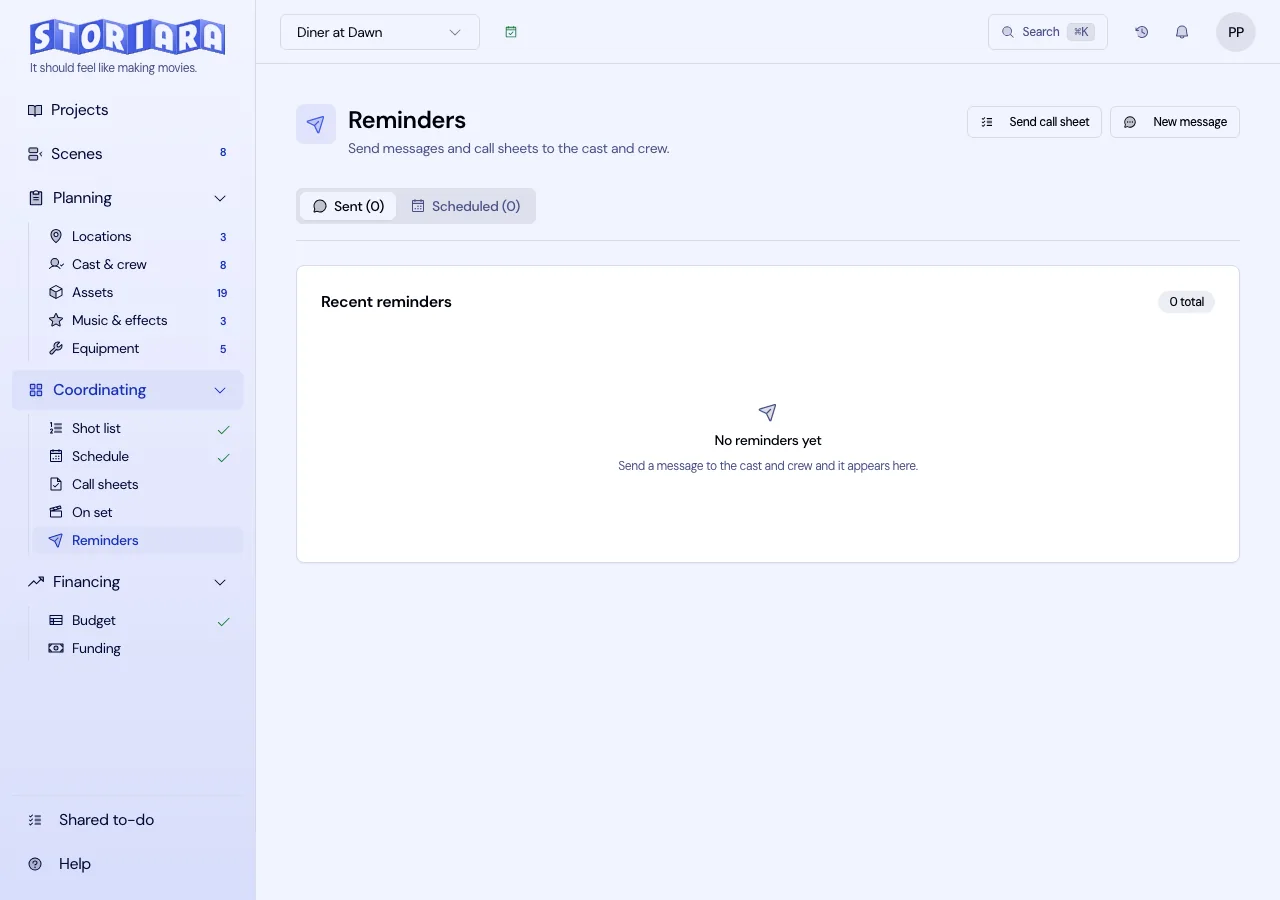
Reminders is the page for the messages that aren't a call sheet: a location change, a weather call, a note to the whole crew. It sends plain email to the cast and crew on a story, now or at a time you set, to the addresses saved in Cast & Crew.
It can also send a call sheet, but that route sends the shared link for the day rather than a personal one, so nobody confirms and nothing lands in the recipients table. Send the sheet from Callsheets when you want to know who has it.
Before you send anything
Recipients come from the Cast and Crew tabs in Cast & Crew. A person without an email address shows "(No email)" next to their name and won't receive anything. Fix those first, especially day players and drivers who were added from a phone call. If the story has no cast or crew yet, the page says No Cast or Crew Members.
Send a message
- Open Reminders in the Coordinating group.
- Click New message.
- Enter a Title and the Message. Both are included in the email, along with the story name and your name.
- Under Recipients, tick names under Cast Members and Crew Members, or use Select All in either group.
- To send now, click Send Message.
- To send later, tick Schedule for later, set the Date, Time, and Timezone, and click Schedule Message.
Keep messages short and specific. "Tomorrow's location has changed to 1440 Vine St. Crew parking is in the lot behind the building. Call time is unchanged at 6:30 AM." will be read. A paragraph with three separate announcements won't.
Send or schedule a call sheet
- Click Send call sheet.
- Choose the shoot day. If nothing is scheduled yet, the dialog says to build the schedule first.
- Pick recipients as above.
- Send now, or schedule it.
Everyone gets the same link to that day's sheet, which opens without logging in. Build and check the sheet on the Callsheets page before you queue it here, because this sends whatever the sheet says when the email goes out. For personal links, delivery status, and confirmations, send from the Callsheets page instead.
Review what's been sent and what's queued
The page has two tabs:
- Sent lists what has gone out. A call sheet entry opens the sheet that was sent.
- Scheduled lists everything waiting to go, with the shoot day, the date, and how many people it will reach. Click the X on an entry to cancel it.
Scheduled items are checked every five minutes, so a send set for 7:00 PM goes out within a few minutes after 7:00.
Timing that works on a real shoot
Timezone matters when the production office and the location aren't in the same one. If the office is in Los Angeles and the shoot is in Albuquerque, schedule in Mountain Time (MT) so "6:00 PM" means 6:00 PM where the crew is.
Queue the whole week's call sheets on Monday only if the schedule is locked. A scheduled send doesn't know you moved a scene on Wednesday. Many coordinators queue one day at a time: after the 1st AD approves tomorrow's work at lunch, they schedule that sheet for an hour after expected wrap.
Use messages for changes that can't wait for the next call sheet: a location change, a weather call, or a cast addition. Don't use them to replace the call sheet. People on set look for the sheet, and a separate email with a new call time is easy to miss at 5:00 AM.
Limits
- Email only. No SMS, push notifications, or app alerts.
- No replies, read receipts, or confirmations from this page. A call sheet sent from Callsheets has all three.
- No department or group lists. Choose people individually or with Select All.
- No attachments. Call sheets go as a link.
- A message goes out as a single email addressed to everyone you picked, so recipients can see each other's addresses. Call sheet emails are sent to each person separately.
- Only people on the Cast and Crew tabs can receive messages; extras entered as counts on the Extras tab can't.
- Scheduled messages can be cancelled, not edited. Cancel and create a new one.