Schedule
The Schedule page is a manual stripboard. You set the shoot days and working hours, then place scenes, individual shots, and meals on each day and drag them into order. Storiara doesn't build the schedule for you; the 1st AD's judgment about company moves, cast days, and light still does that work. What the page adds is the connection to everything else: the Day Out of Days, call sheets, the budget, and the On set page all read from the days you build here.
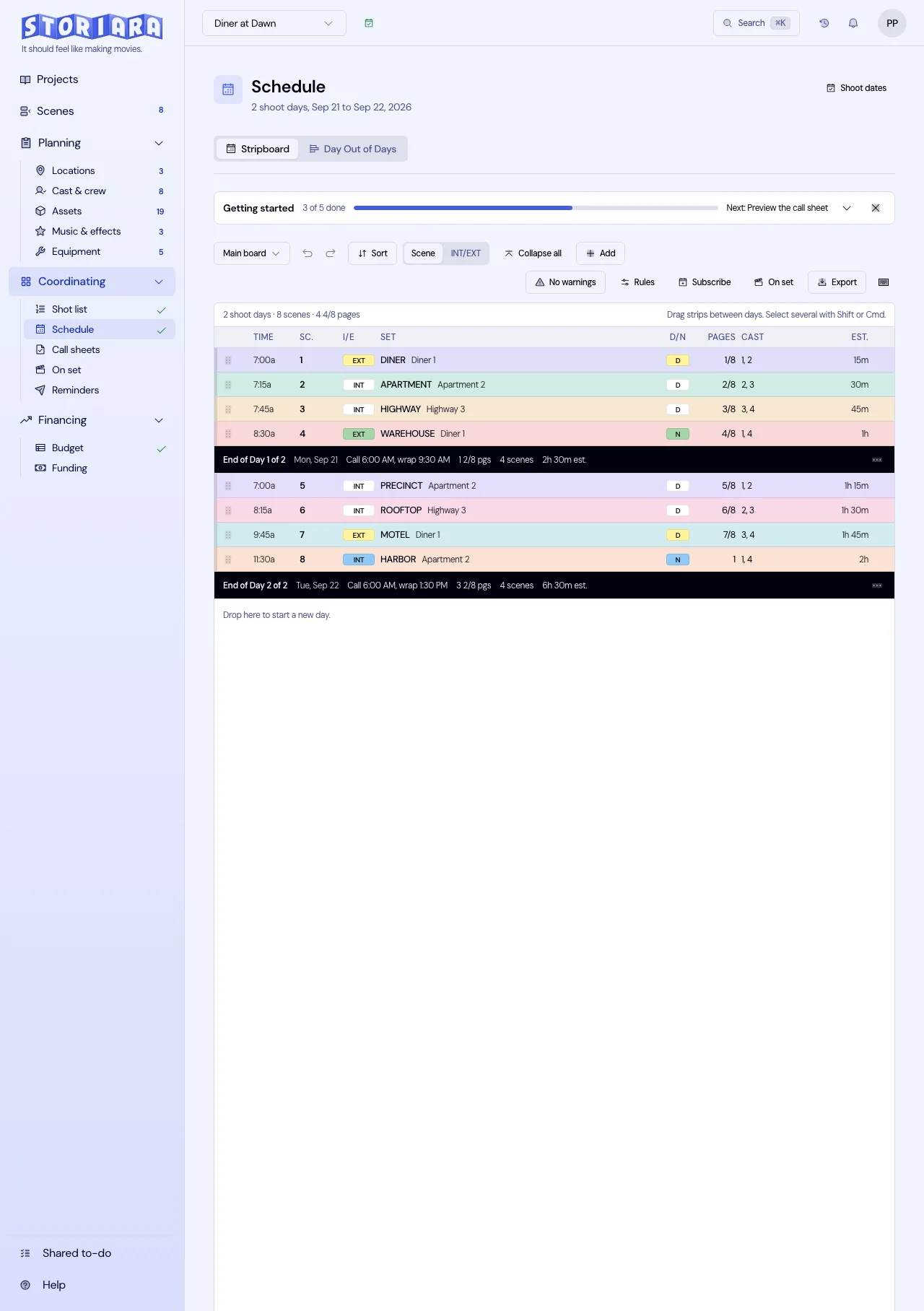
Set shoot days and hours
Shoot days are set on this page. There is no separate production schedule dialog any more.
- Open Schedule in the Coordinating group. It unlocks once the project has scenes.
- Under When is the first shoot day?, pick the date and click Start schedule. That is Day 1.
- Add more days from Add in the toolbar: Add day for one, or Add days... for several. New days go after the last day on the board, on the days of the week you usually shoot, and their dates are saved at once.
- To move one day, open its menu and choose Change date... Only that day moves, with everything on it. Remove day takes the date off the schedule and sends its scenes back to the boneyard.
- Click the hours button in the header to open Daily hours and set the start and end, for example 7:00 AM to 7:00 PM.
The header then reads the day count and the date range. The daily hours set the length of a shoot day unless a day has its own times, and the board uses them to work out call, wrap, and the day's limit. Having dates also unlocks Call sheets and On set, and lets you send availability requests from Cast & Crew.
Read a strip
Every row on the board sits on one grid: Time, Sc., I/E, Set, D/N, Pages, Cast, and Est. (the strip's length in minutes).
Strips are coloured by the scene colour set on the Scenes page, and the I/E and D/N cells carry small chips in the traditional board colours, so the industry reading survives even when your scene colours mean something else. Colour by in the toolbar switches the whole board between Scene and INT/EXT, and the choice is remembered on that browser. Printed schedules and the PDF exports always use the traditional colours, because a paper strip is expected to read white, yellow, blue, green.
The Time column shows the derived start of every strip, shot, and meal, worked out from the day's call and the lengths above it. These are the same numbers the call sheet prints, so the two cannot disagree. A time you typed yourself carries a small pin, and clicking a time opens the editor.
Day break rows read "End of Day 1 of 18" with the day's call and estimated wrap beside it.
Shots on the board
A scene strip has a chevron that expands its shots underneath it, indented on the same grid, each with its own number, category, length, and start time. Expand all and Collapse all are in the toolbar. On a phone shots start collapsed.
Shots are draggable in their own right. Drag one to another day and it joins that scene's strip there, or forms its own dashed shot-only row if the scene isn't on that day. Drag it to the boneyard to unschedule it, leaving the shot itself on the shot list. Moving a scene does not move its shots, on purpose: the strip says "2 shots still on Day 3" and offers Move shots with scene when that is what you meant. You can multi-select shot rows, but Storiara refuses a mixed selection of strips and shots and tells you to move them separately.
Build and rearrange a day
- Add in the toolbar adds a day, several days, a company move, a meal, a note, or a holiday.
- Sort orders the strips within each day, or the boneyard, by location, set, INT/EXT and day or night, lead cast, length, or scene number. A single day can be sorted from its own menu.
- Day breaks places every day break at once, by Pages a day (8 pages a day is one click) or by Shooting time. It replaces the day breaks you have, and holidays and days off stay where they are.
- Find looks for strips by a field and a value, or by a cast member, and steps through the matches.
- The + menu on a day row adds scenes or shots to that day.
- Drag strips up and down within a day, or between days. Hold Shift or Cmd to take several at once, then use Move to day or To boneyard from the selection bar.
- Meals sit inline in time order as their own row, and drag within the day like anything else.
- Clicking a strip selects it and opens the Edit side panel on it, which is where the length, start time, and the strip's shots are edited.
- Undo and redo cover every one of these, including the ones that write shots.
Change a strip's length
Click the strip's length cell, or Set length in its menu, and type minutes. Use estimated length clears back to the derived value, which is the scene's planned minutes if you typed one, otherwise its pages times your shooting pace.
The length is checked against the day as you type. A value that would push the day past its limit is refused rather than warned about: the field turns red, names the limit and the overage, and offers the largest length that fits and Split across days. Nothing is saved until you pick one. The same guard applies to a drag that would overfill a day. If you want to run long on purpose, Allow overage for this day on the day menu records the decision and the day keeps showing in the warnings panel instead of disappearing from it.
Shoot one scene over several days
A long scene doesn't have to be one strip. From the strip menu, Also shoot on puts a second strip for the same scene on a day you pick, and Split across days divides the pages and minutes between them. Parts read as "12 (1 of 2)" and "12 (2 of 2)", carry the scene's colour and breakdown, and each holds its own share of the length, so day totals stay honest. Merge parts puts them back together.
Every downstream page counts a part once per day: both days' call sheets list the scene, and the DOOD shows the cast working on both.
The side panel
The panel on the right of the board has three tabs.
- Boneyard. Scenes not on the board yet, or taken off it. Drag from here onto a day.
- Edit. The selected strip, shot, or meal, inside the day it belongs to, with lengths, start times, and the day's contents editable in place. Selecting something on the board switches to this tab and scrolls to it. Choosing Boneyard or Availability deliberately keeps them open.
- Availability. The day's grid of what you've collected for cast, crew, locations, equipment, props, and wardrobe, in 15-minute slots. Use it to spot the day player who is only free until 2:00 PM before you put their scene after lunch. It is information only. Storiara won't stop you from scheduling someone on a day they marked unavailable, so read it each time you move a strip.
Warnings and production rules
Rules in the toolbar holds the day limits the board checks against, including maximum hours per day, pages per day, and turnaround. Warnings lists what currently breaks them, including the overages you allowed on purpose. Errors are counted separately from warnings on the button.
One board for a TV show
A show has one stripboard for all its episodes, so you can cross-board them. Strips are labelled with the episode code and the scene number, such as "101-12", with a coloured dot per episode. Open the schedule from an episode and you still see the whole show: that episode's strips as usual and the other episodes' strips faded. Faded strips can be dragged like any other. The Episodes switch in the toolbar changes between All episodes and Only this episode, and the boneyard and the phone view follow it. A shoot day can hold scenes from several episodes, and its call sheet lists all of them.
Savings suggestions
The lightbulb button at the top of the page opens Savings. It lists schedule changes that would save money, such as dropping a company move or a cast hold day, each tested on a copy of your board and priced with the project's own rates. Apply makes the change on the board as a normal edit, so undo reverses it. A suggestion closes on its own once the change is in place or the scenes it refers to are no longer scheduled. See how to read the savings panel.
Switch to the Day Out of Days
The tabs under the page header switch between Stripboard and Day Out of Days. The DOOD is a grid of cast against shoot days, filled in from the cast assigned to the scenes and shots you placed, with the name column pinned so it stays put while you scroll the days sideways. See Day out of Days.
Export and print
Export in the toolbar writes:
| Group | Formats |
|---|---|
| Schedule | One-liner (PDF), Stripboard (PDF), One-liner (Excel), Strips (CSV) |
| Day Out of Days | PDF, Excel |
| Movie Magic Scheduling | Project file (.mmsx), which opens with the breakdown sheets, elements, stripboard, and day breaks. Tagged script (.fdx), imported with File > Import Script |
| Movie Magic reports | The reports that program prints, each as PDF or Excel |
Subscribe gives a calendar feed of the shoot days. The printer icon prints whichever view is showing. On set opens the day's Today view and production report, which is where the schedule meets what actually happened.
Scheduling practice that fits this board
Start with your hardest constraints: locations you only have for certain days, actors with limited availability, minors' hours, and night work. Place those scenes first, then fill around them.
Group by location before anything else, then order within the day for light and cast. Every company move eats into the day with wrap, travel, and setup at the next place. Put one on the board as a company move row so the time column accounts for it, rather than leaving it in your head.
Watch page count per day. The board header shows the totals, and the day limit refuses lengths that overfill a day, but pace is a judgment call: 3 pages a day on a feature and 8 on a low budget week are both normal, and only you know which this is.
Protect turnaround between days. The rules carry a turnaround figure, and both the warnings panel and the Savings panel flag breaches, but a late night followed by the standard call still needs your eye on it.
Limits
- No automatic scheduling. The Savings panel suggests changes, and you decide whether to apply them.
- Availability is shown, not enforced.
- No minors' hours check.
- Scene colours are yours to set, so the board only reads as a traditional board if you set them that way, or you switch Colour by to INT/EXT.
Related
- How to set production dates
- How to build a stripboard
- How to print the schedule
- How to create a TV show and add episodes
- How to read the savings panel
- How to read the Day-Out-Of-Days
- Day out of Days, Shotlist, Callsheets, On set
- Glossary: stripboard, strip, company move, turnaround, day break
- Templates: stripboard, shooting schedule, one-line schedule
- Tools: turnaround calculator, stripboard color legend
- Guides: how to read a stripboard, how many script pages can you shoot in a day